

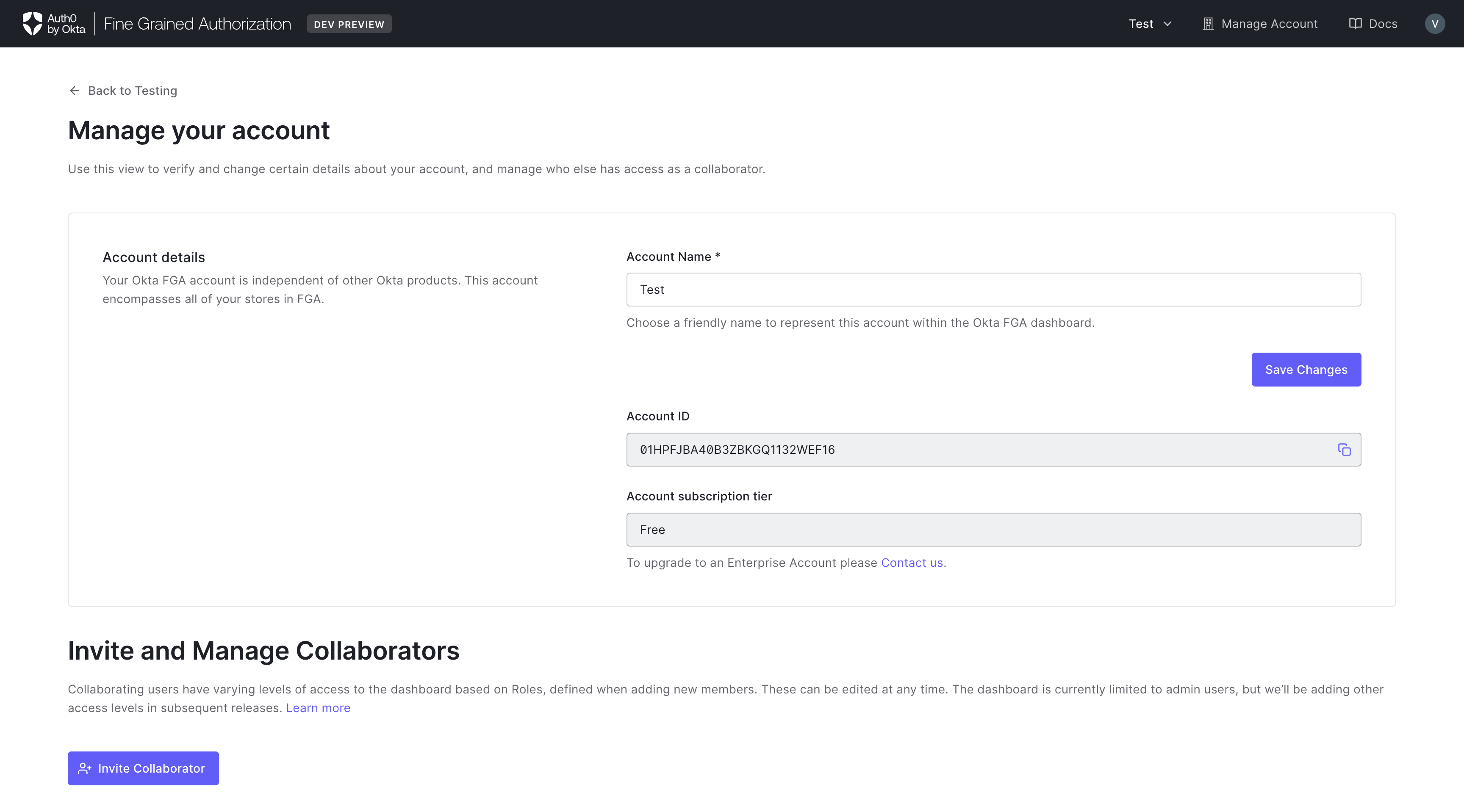
Manage members
Use members, groups, and roles to control who can access your FGA account and what they can do in the dashboard. Invite members to your account, organize them into groups, and assign roles to those groups to enforce least-privilege access. For step-by-step instructions, see:This functionality is only available for users with an Account Owner or Group Manager role.
How to invite members
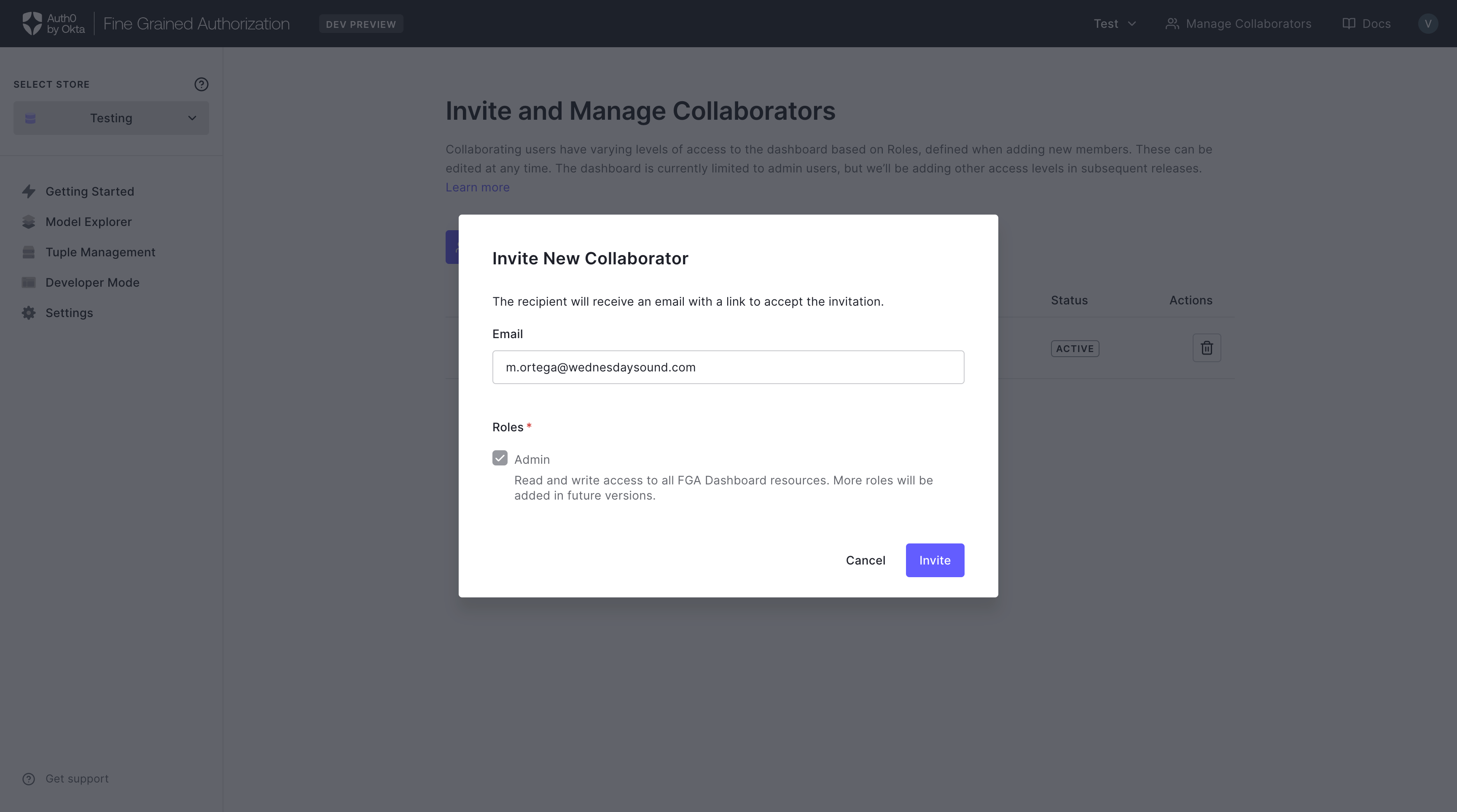 To invite members, navigate to Account > Members and click the Invite New Member button. Enter the invitee’s email in the text box and then click Invite. They will receive an email inviting them to join the account. Once they accept the invitation, they will have access to the account’s FGA dashboard.
After inviting, you may also use the Copy action button to copy the invitation link to the clipboard. This makes it easy to share access through a messaging platform like Slack or Teams. To use the invite link, the new member must sign in using the same email you added, otherwise the invitation will be invalidated.
Invitations are one-time only. If an invitation is canceled, expires, or is invalidated in any other way, a new invitation will have to be sent.
- Pending

- Accepted and Joined

- Expired

How to cancel an invitation
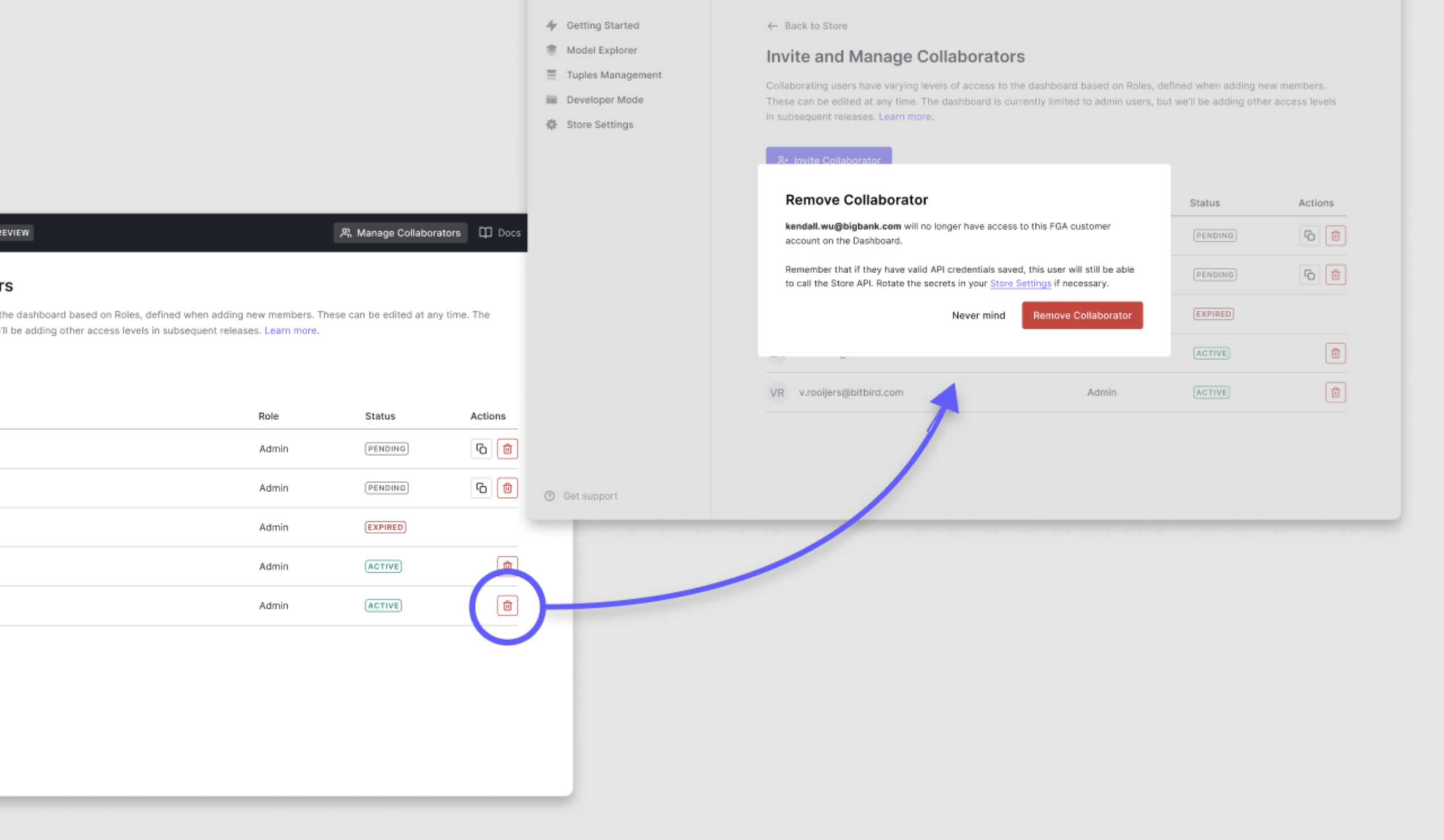
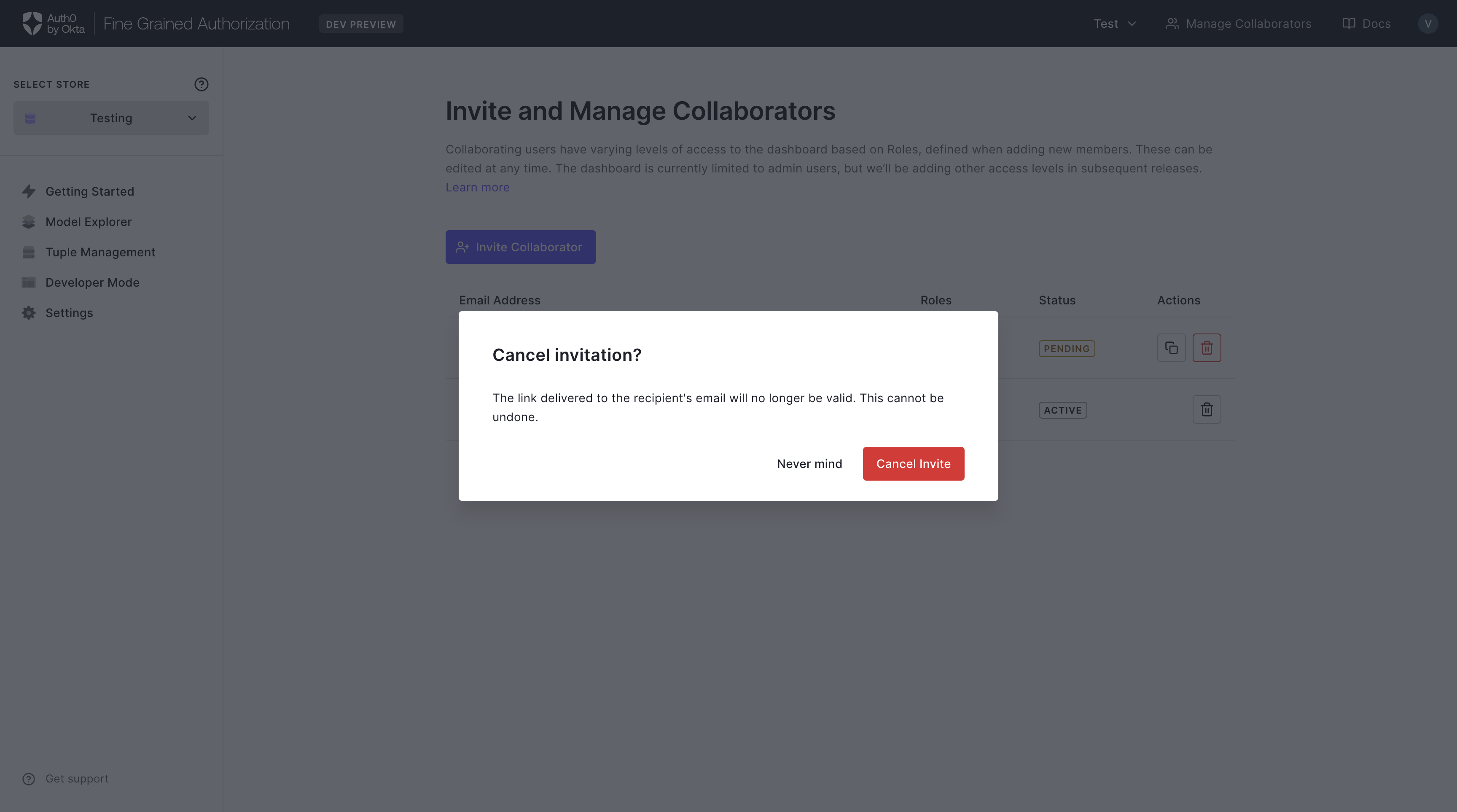 Anyone with access to the Manage Members view has the ability to cancel a pending invitation. To do this, click the button with a red trash can icon beside the user whose invitation you’d like to cancel. The invitation will become invalid and can no longer be used.
If the invitation has already been accepted, you will instead need to revoke the invitee’s access instead of cancelling the invitation to prevent the invitee from accessing the account’s dashboard resources.
How to accept an invitation
You can receive an invite through an email or through a link shared directly with you.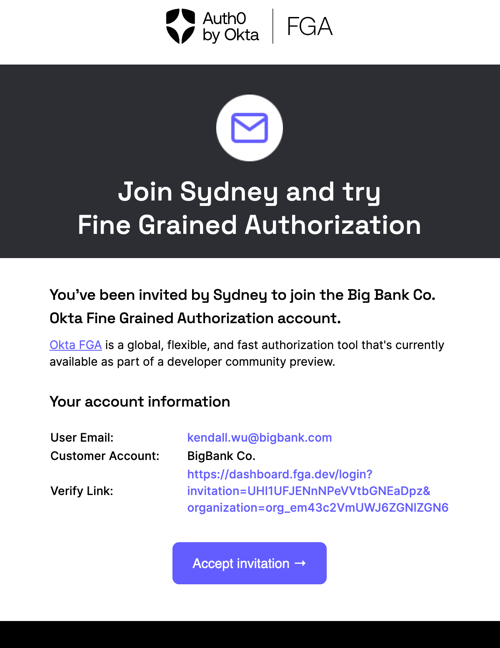 After you receive an invite with a link, you can go to that link and will be asked to sign in. Make sure to sign in with the same email address that the invitation was sent to, otherwise the invitation will be canceled and you will have to request a new invite.
How to remove a member
Switching between customer accounts
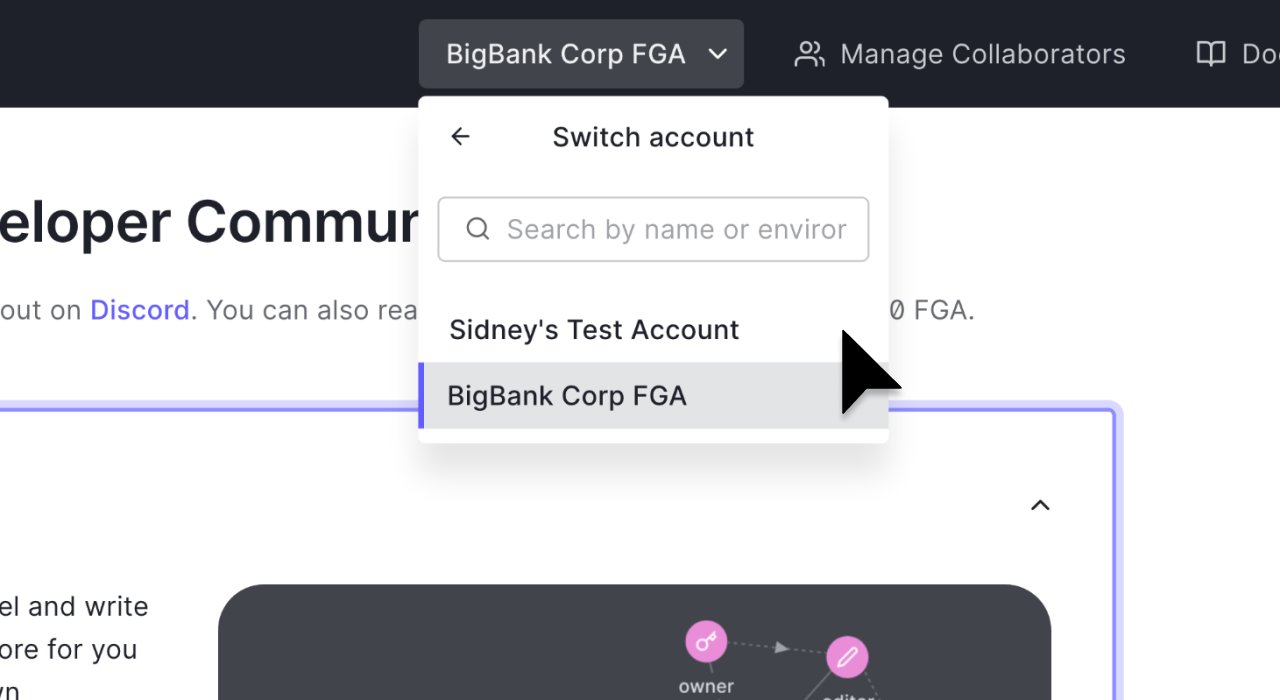 When you have more than one customer account, you may switch between these accounts by clicking the name of the current account in the top bar of the Dashboard interface. The ‘Switch Account’ button will display the customer accounts you have access to.