-
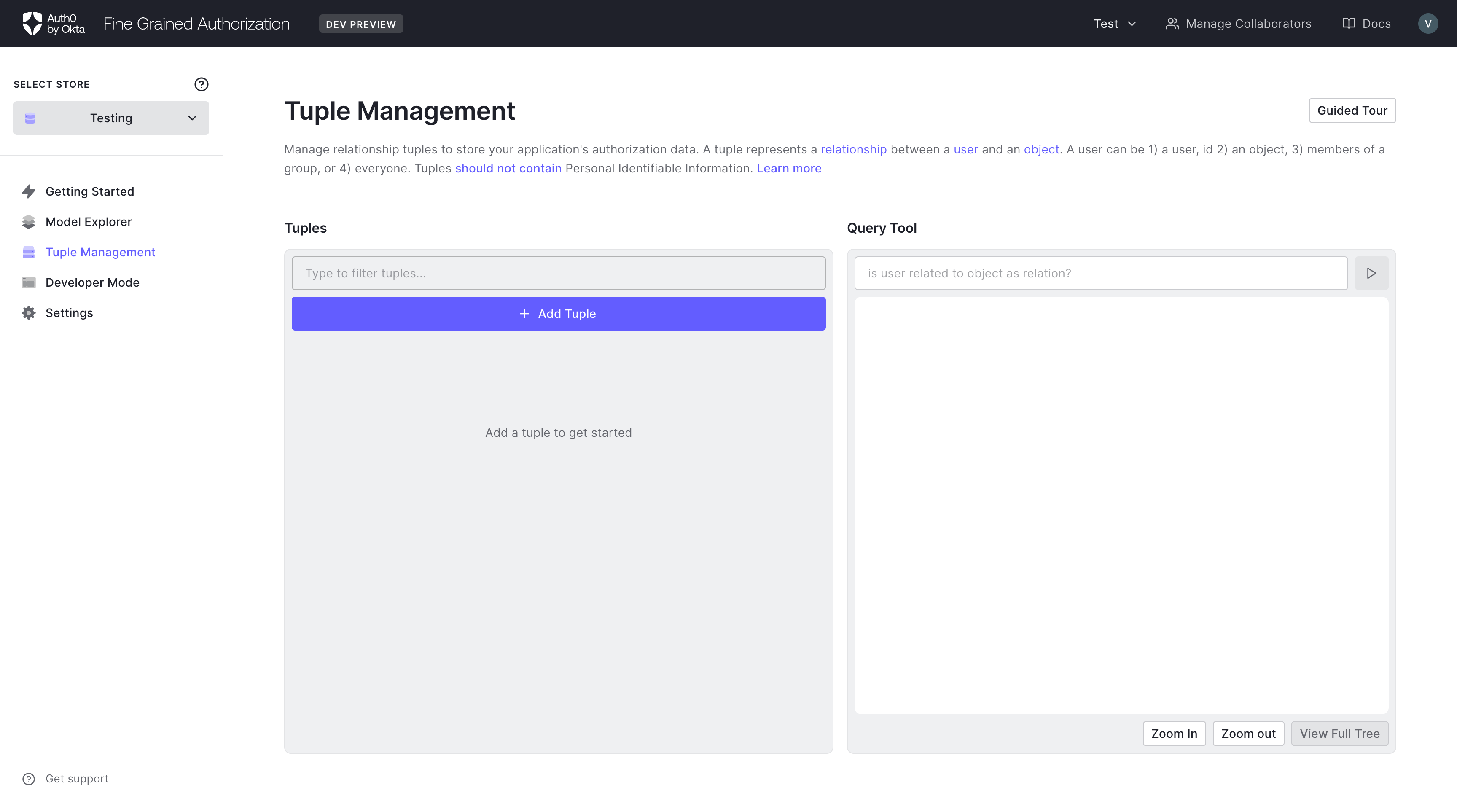
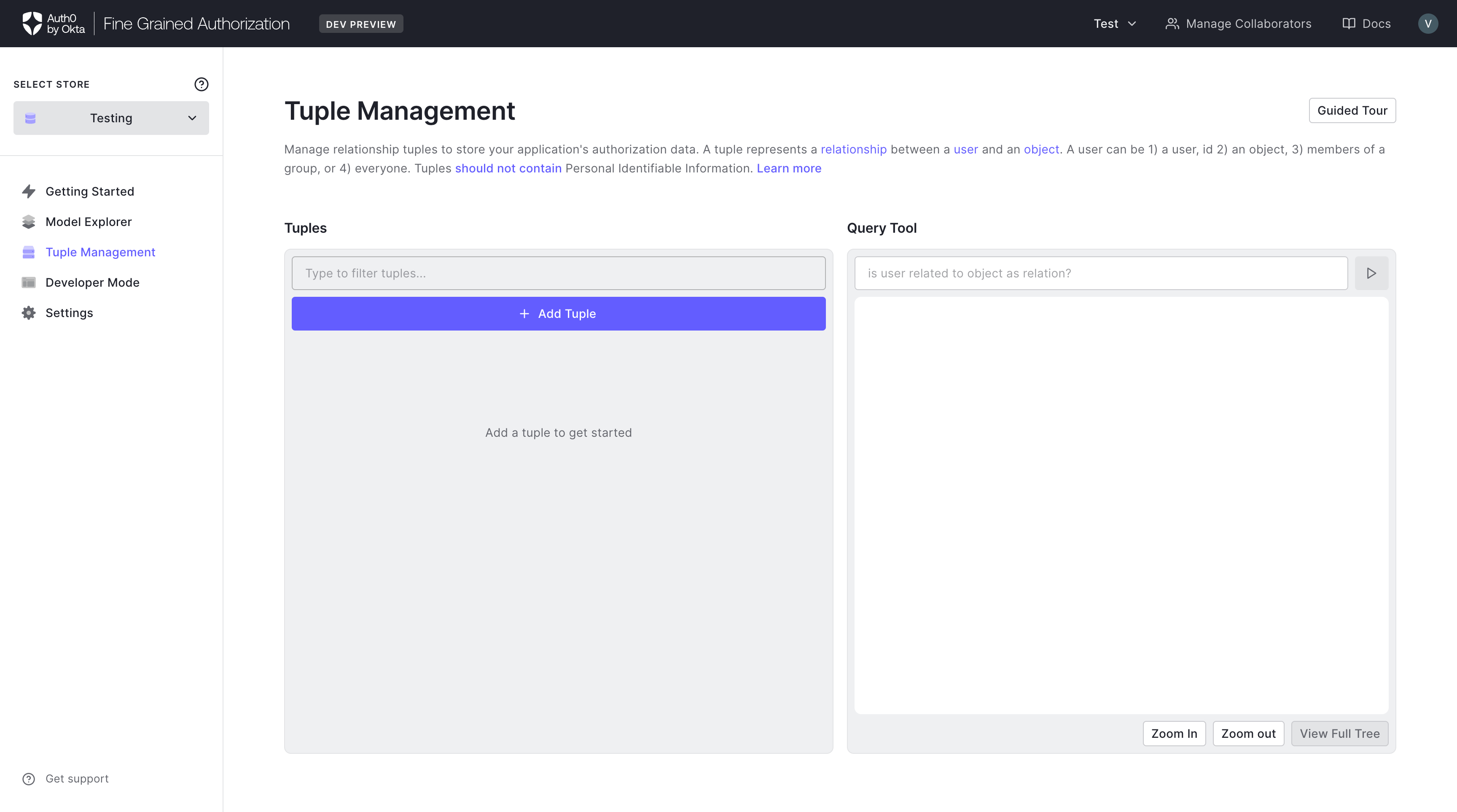
In the Tuple Management page, you may add relationship tuples in the Tuple Editor panel located on the left part of the page.
-
Click Add Tuple+ to add new relationship tuples.
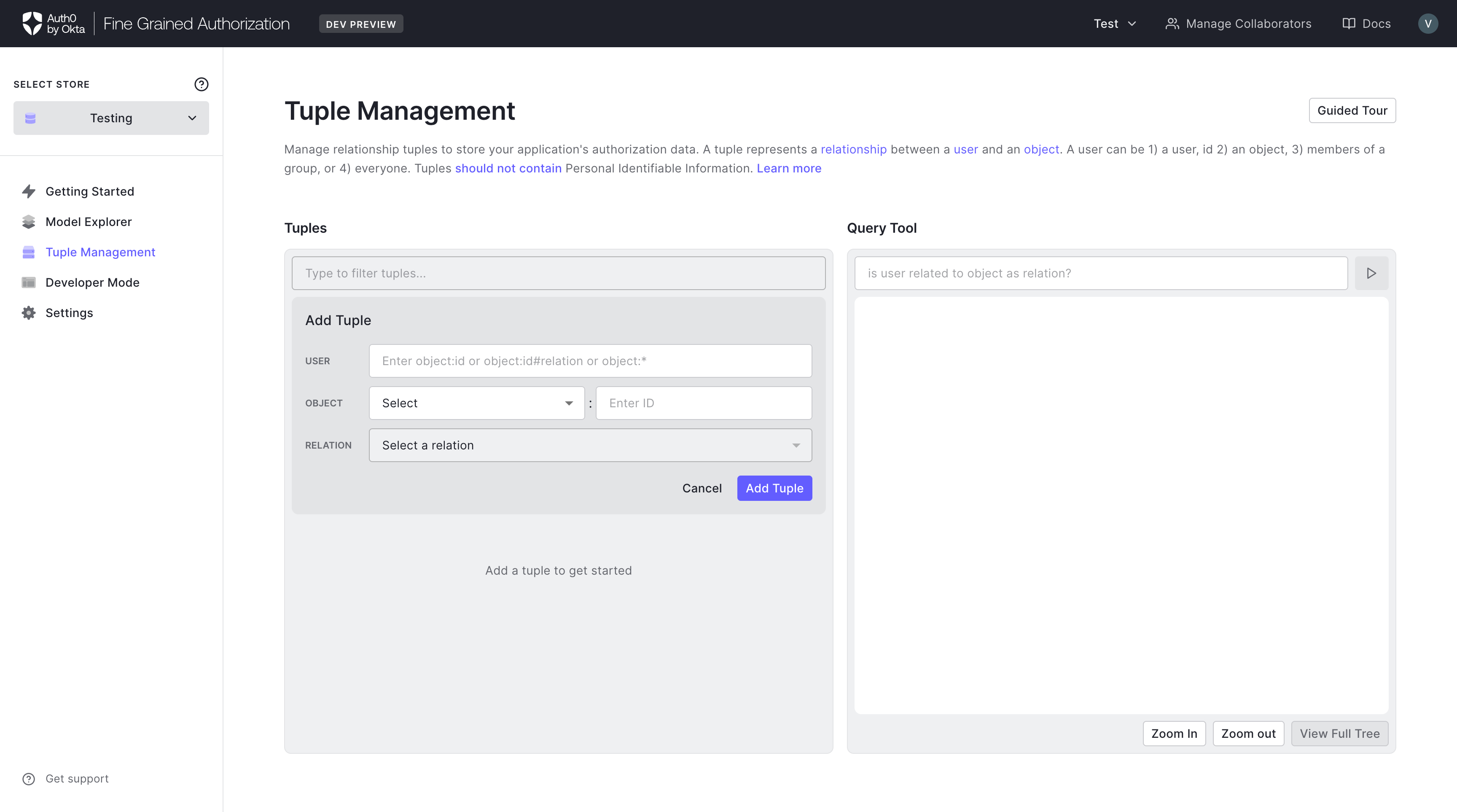
- This will bring up the input for User, Object and Relation.
- For the USER text box, type in the user identifier. Make sure the user identifier is in the correct format.
- For the OBJECT line, the drop down list allows you to choose the type and the text box allows you type in the object name.
-
For the RELATION there will be a drop down selector allowing you to choose from the type’s possible relations.
-
Click the check mark button to save. The X button will cancel the changes.
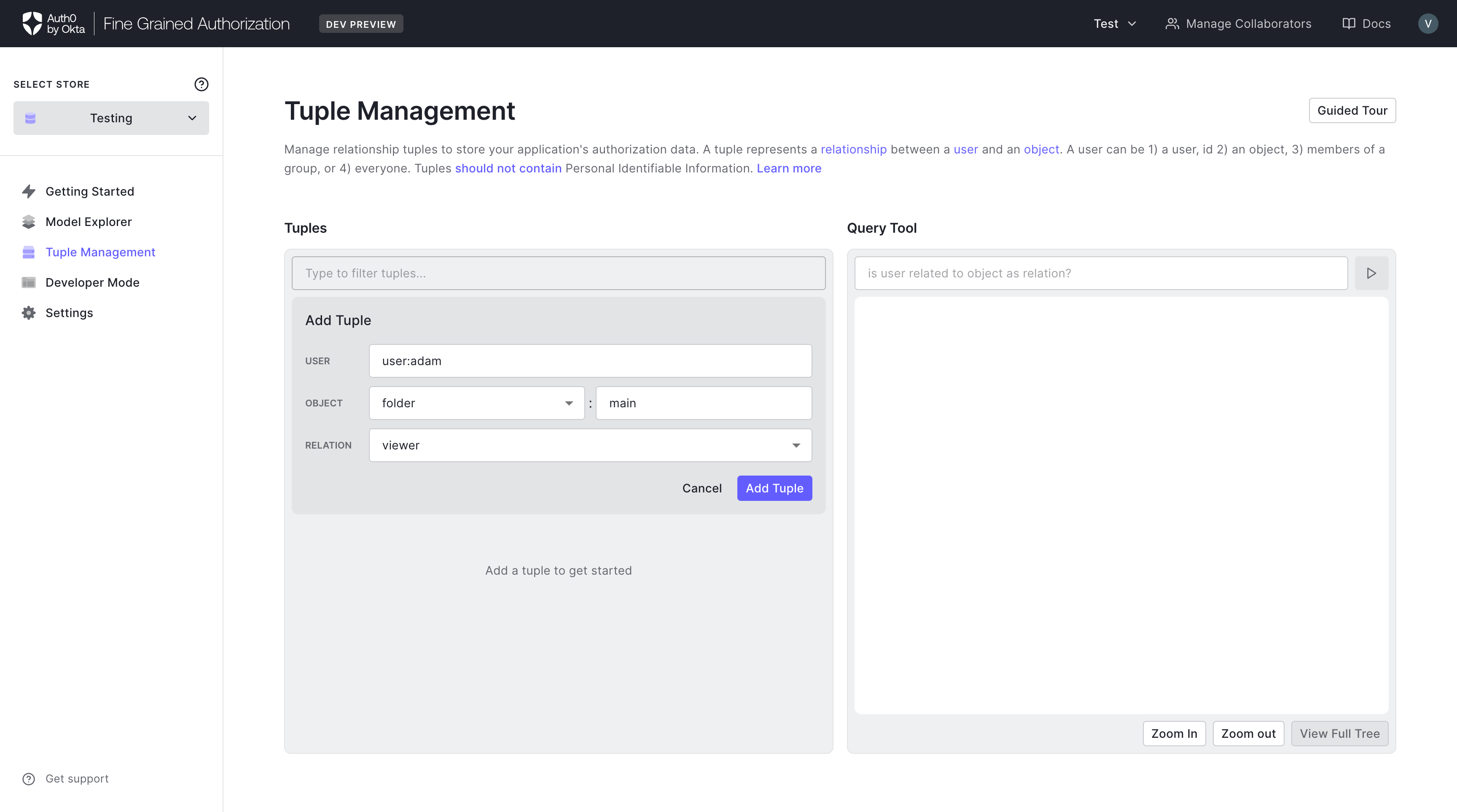
-
The added relationship tuples will be shown in the tuples editor panel.
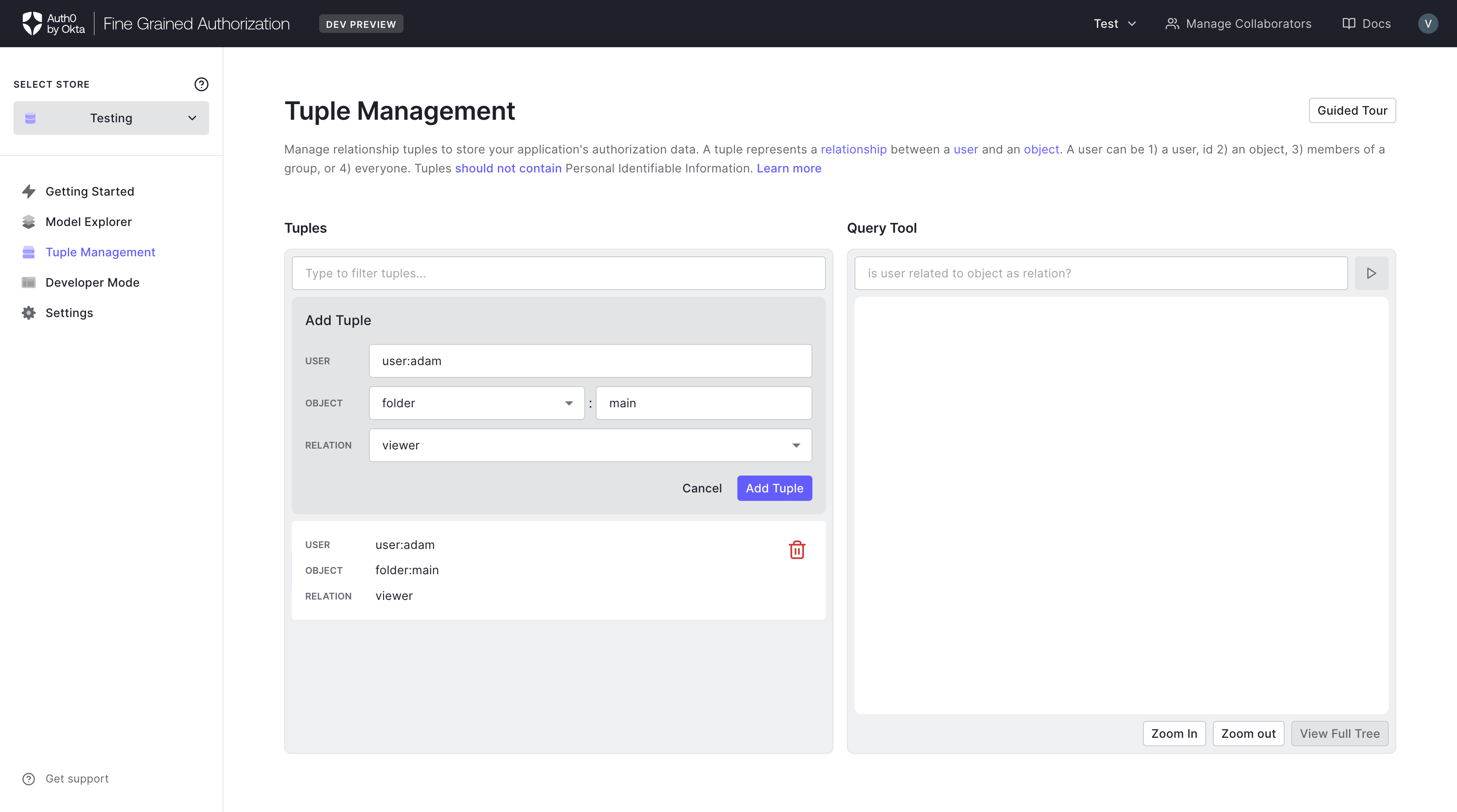
-
Relationship tuples may be removed by clicking the trash can button.
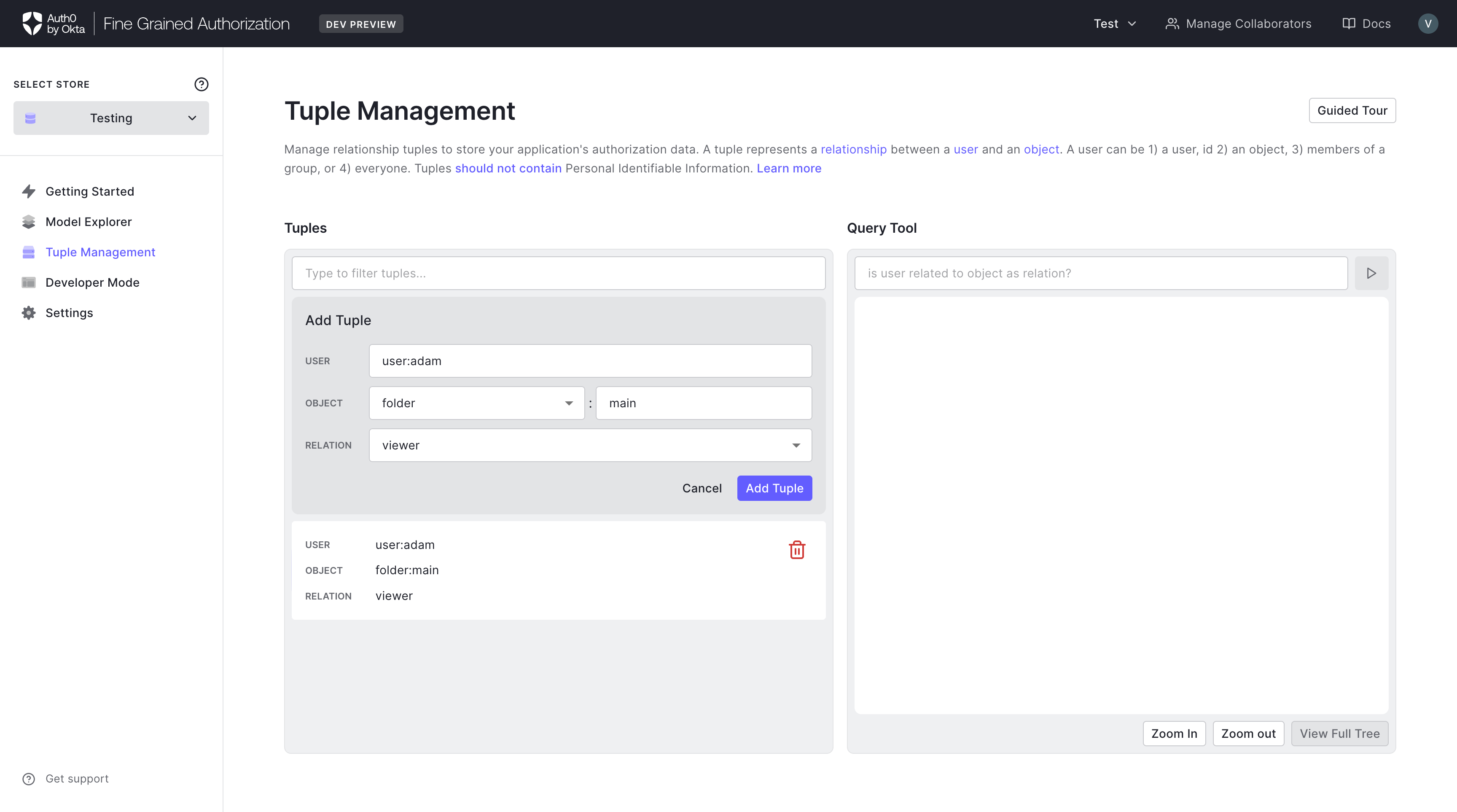
The Dashboard will only display a maximum of 100 tuples. This is a current limitation of the Dashboard view. Use the FGA CLI or API to retrieve all tuples.
Manage conditions
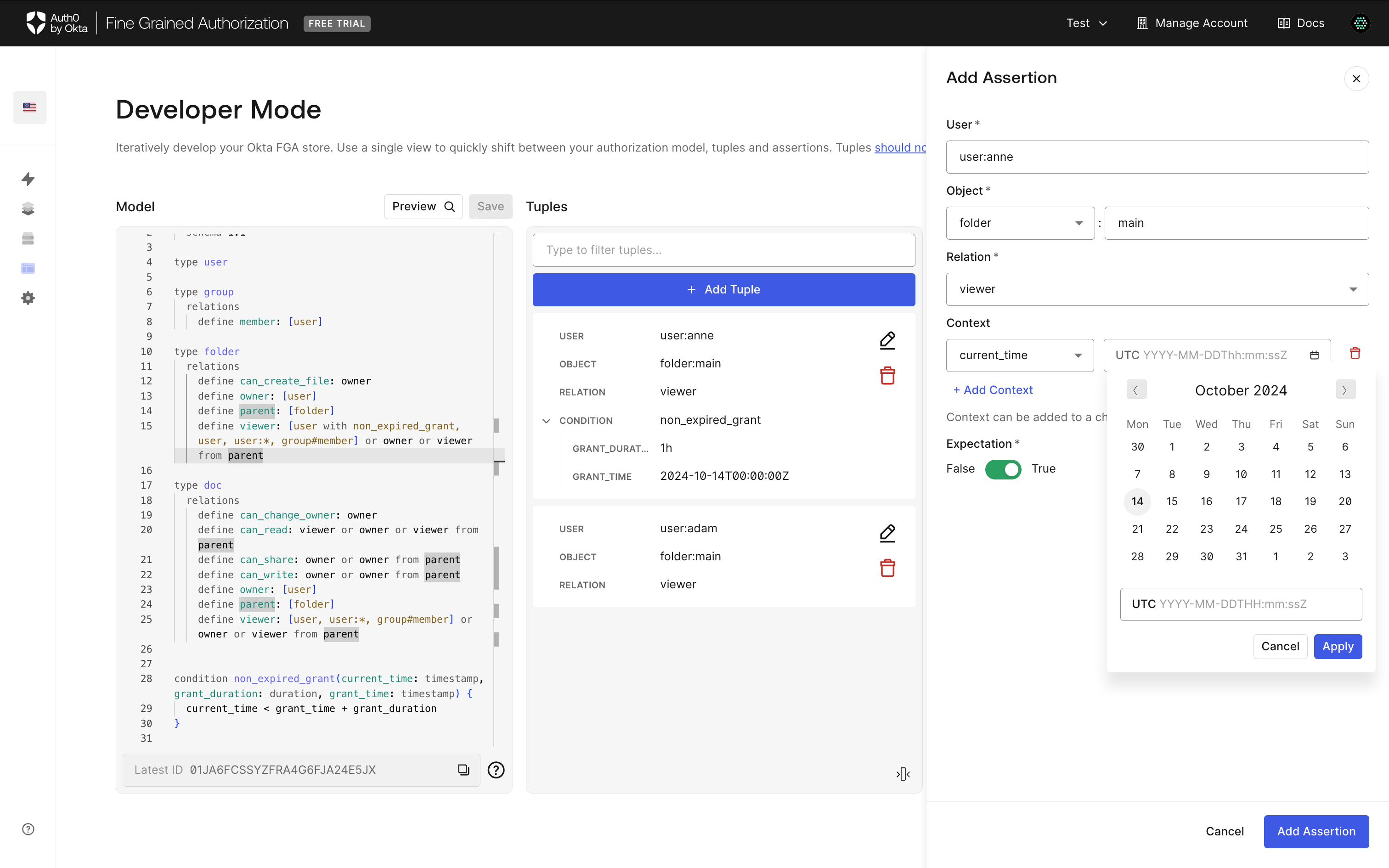
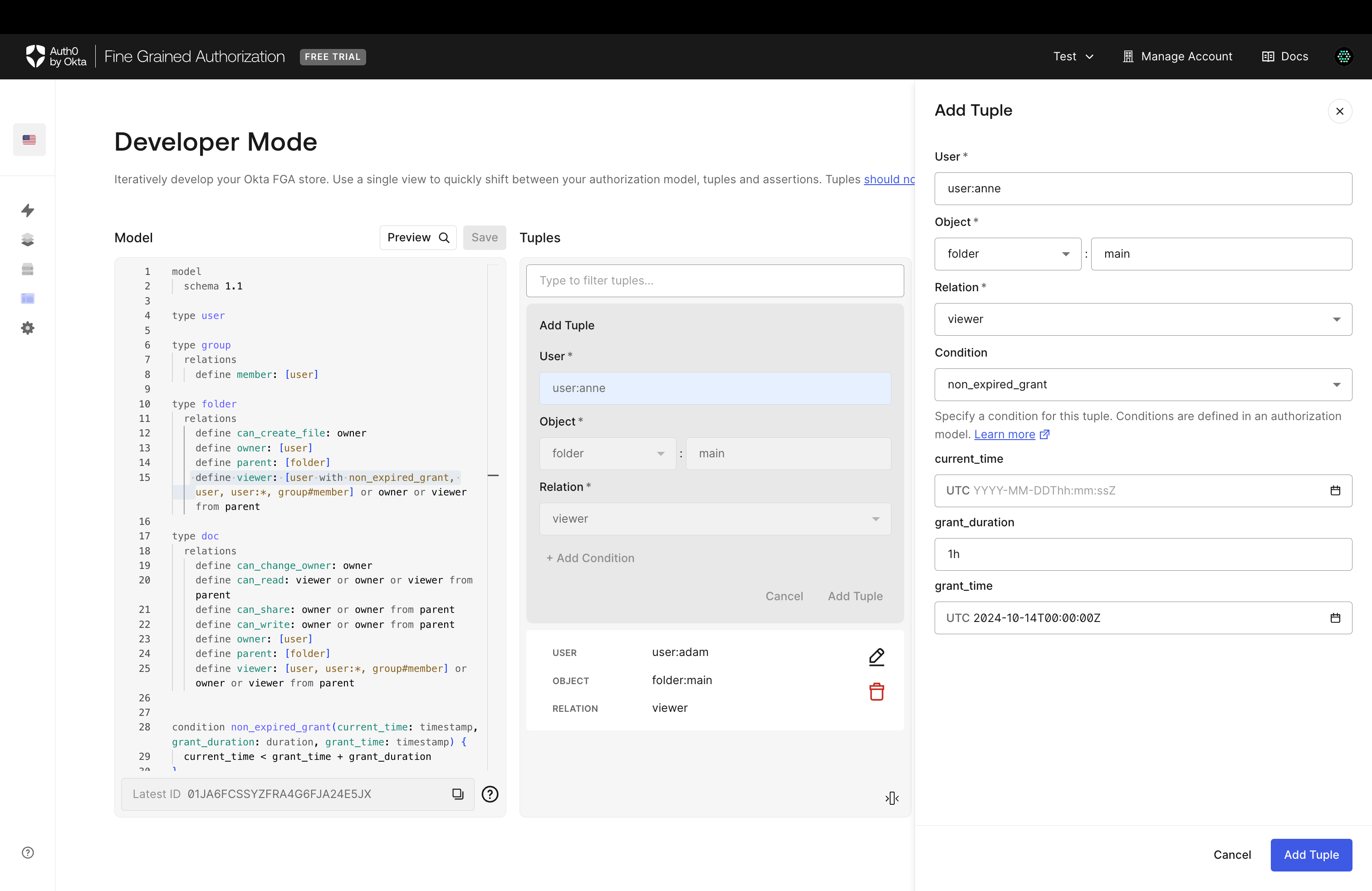
If you have conditions defined on your model, whenever you add a tuple for a relation that can be conditioned, an Add Condition option is displayed.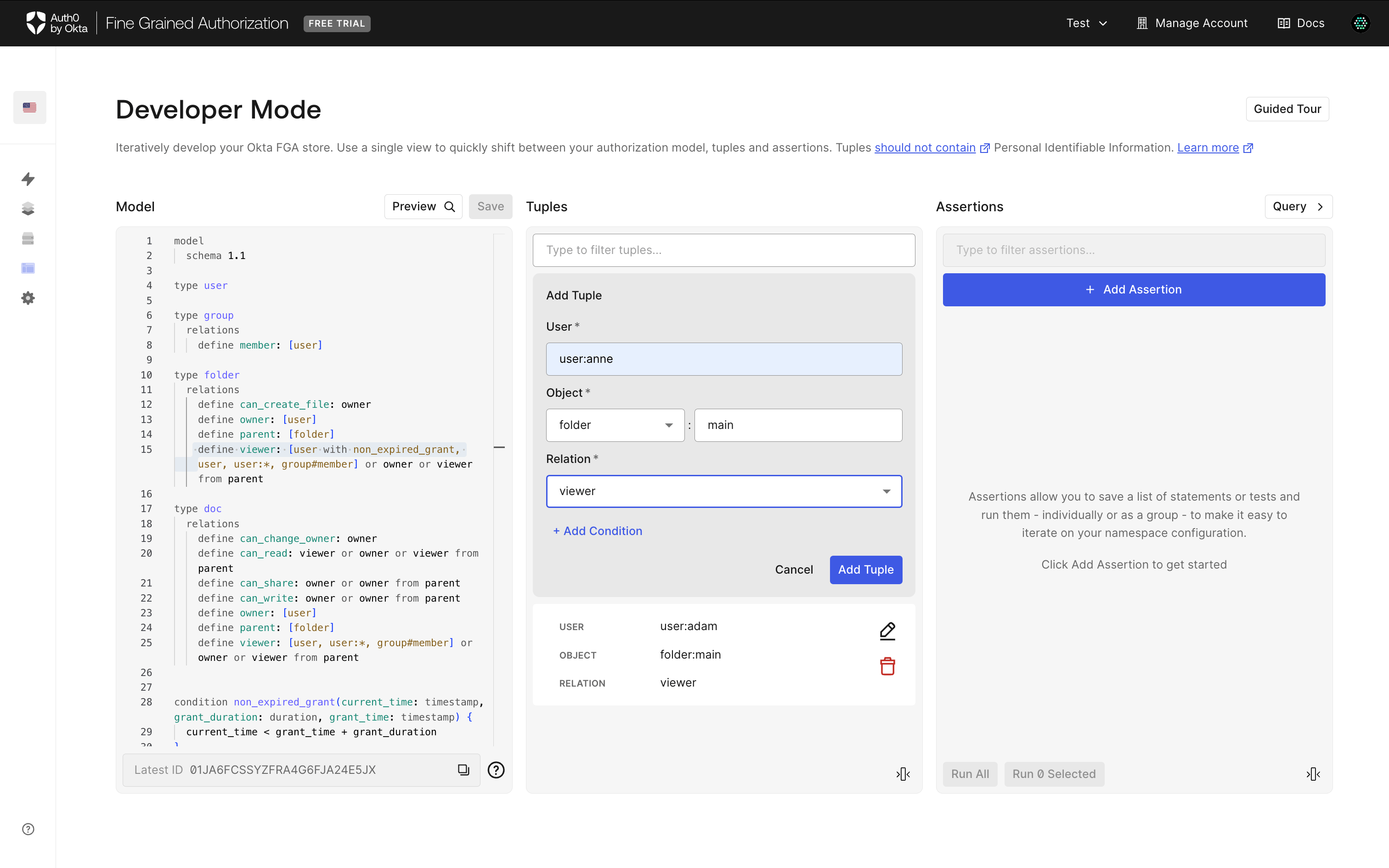 When you click on Add Condition, a new panel opens where you can specify the condition name and the parameters you want to instantiate in the tuple itself. In this case, the condition name is
 non_expired_grant, the current_time is not specified, the grant_time is at midnight October 14th, 2024 and the grant duration is 10 seconds.
 Whenever you add an assertion, you will see an Add Context option.
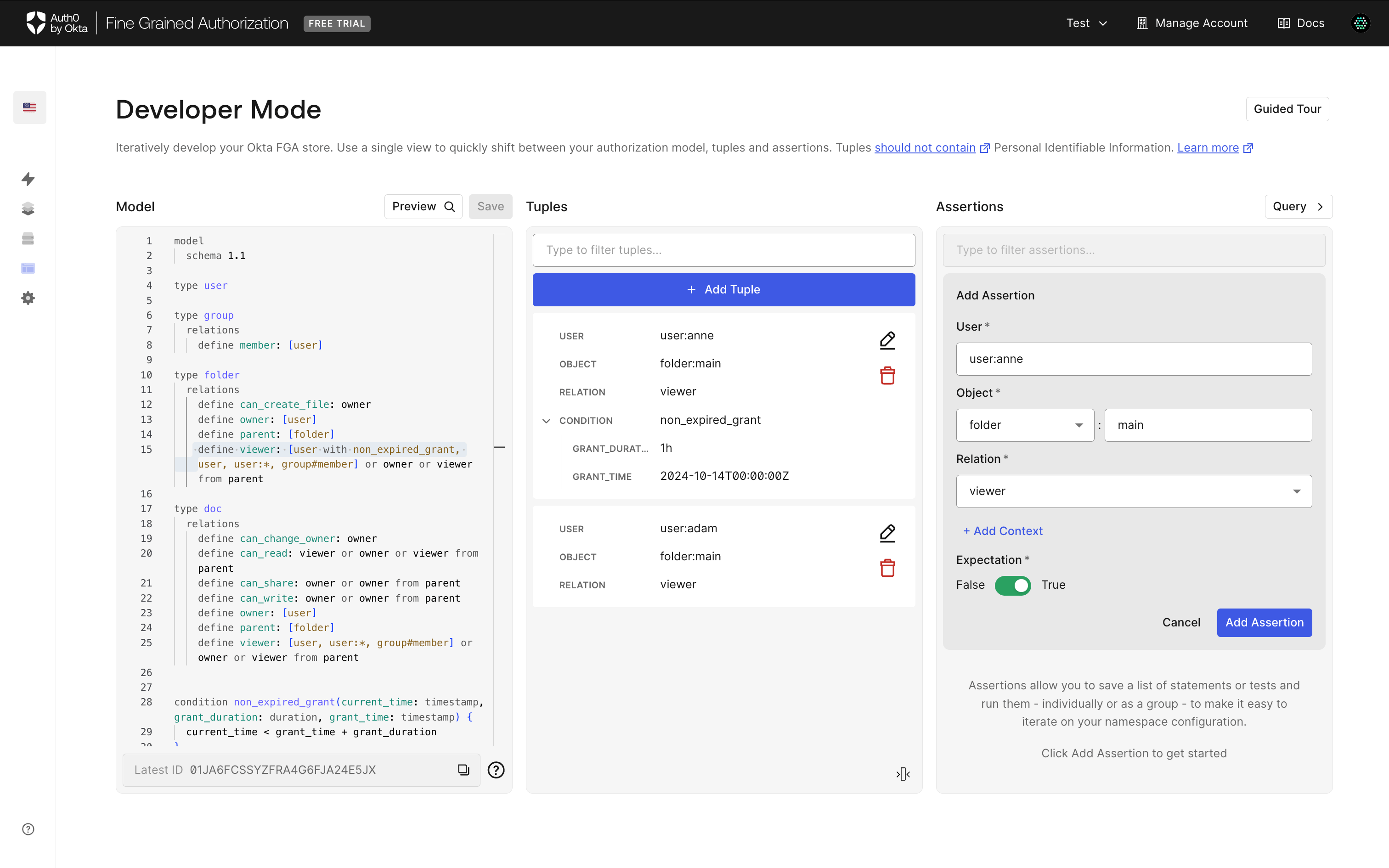 When you click on Add Context, a new panel is opened to specify the contextual parameters. Auth0 FGA shows specialized field editors depending on the data type.