Manage Credentials
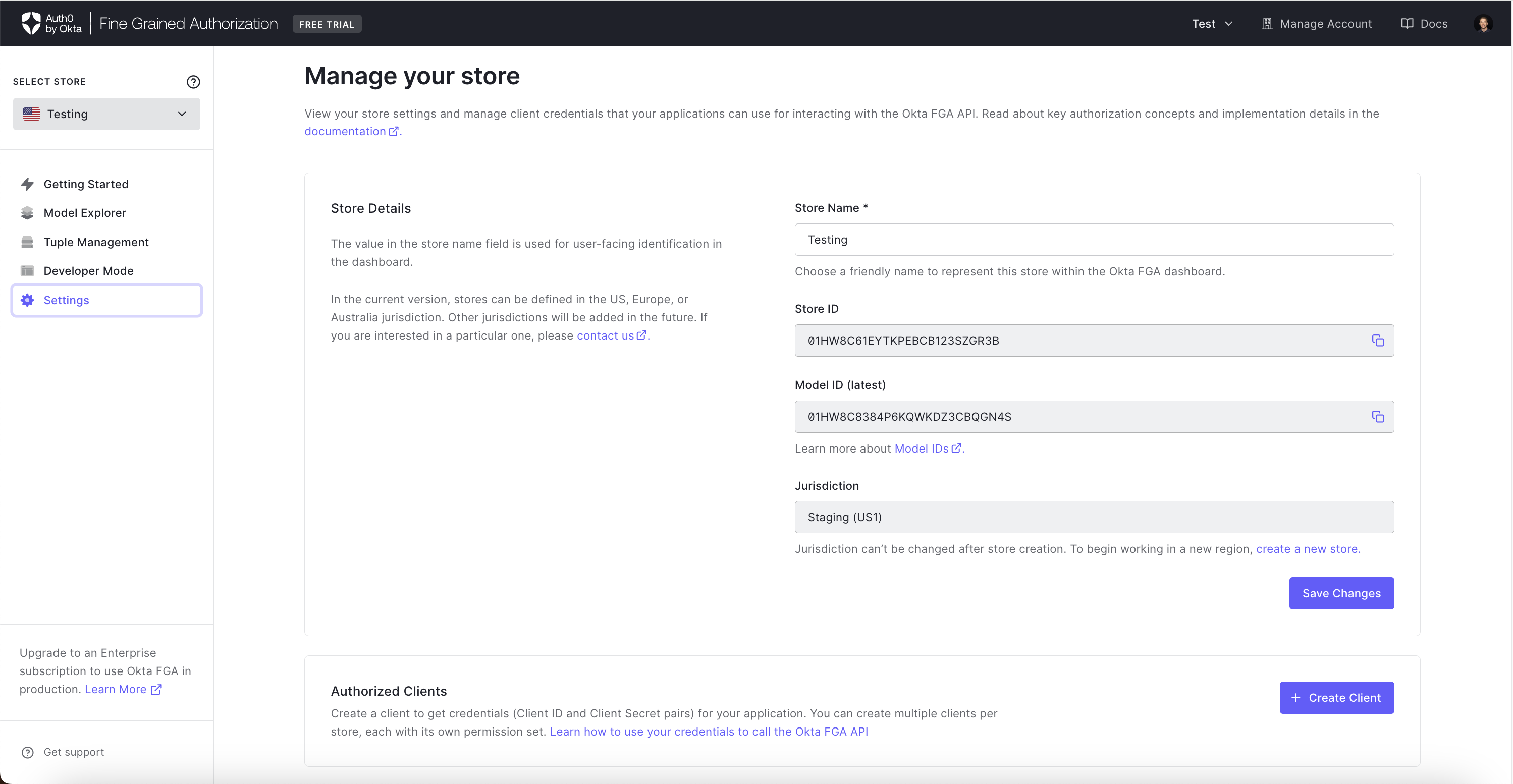
Create Authorized Clients
The Authorized Clients section allows you to create a client to get API credentials (Client ID and Client Secret pairs). You can create multiple clients per store, each with its own permission set that may be used for the Auth0 FGA API or SDKs.
You need to create authorized clients before you are able to call the Auth0 FGA API.
To create a new authorized client:
- Click the Create Client button
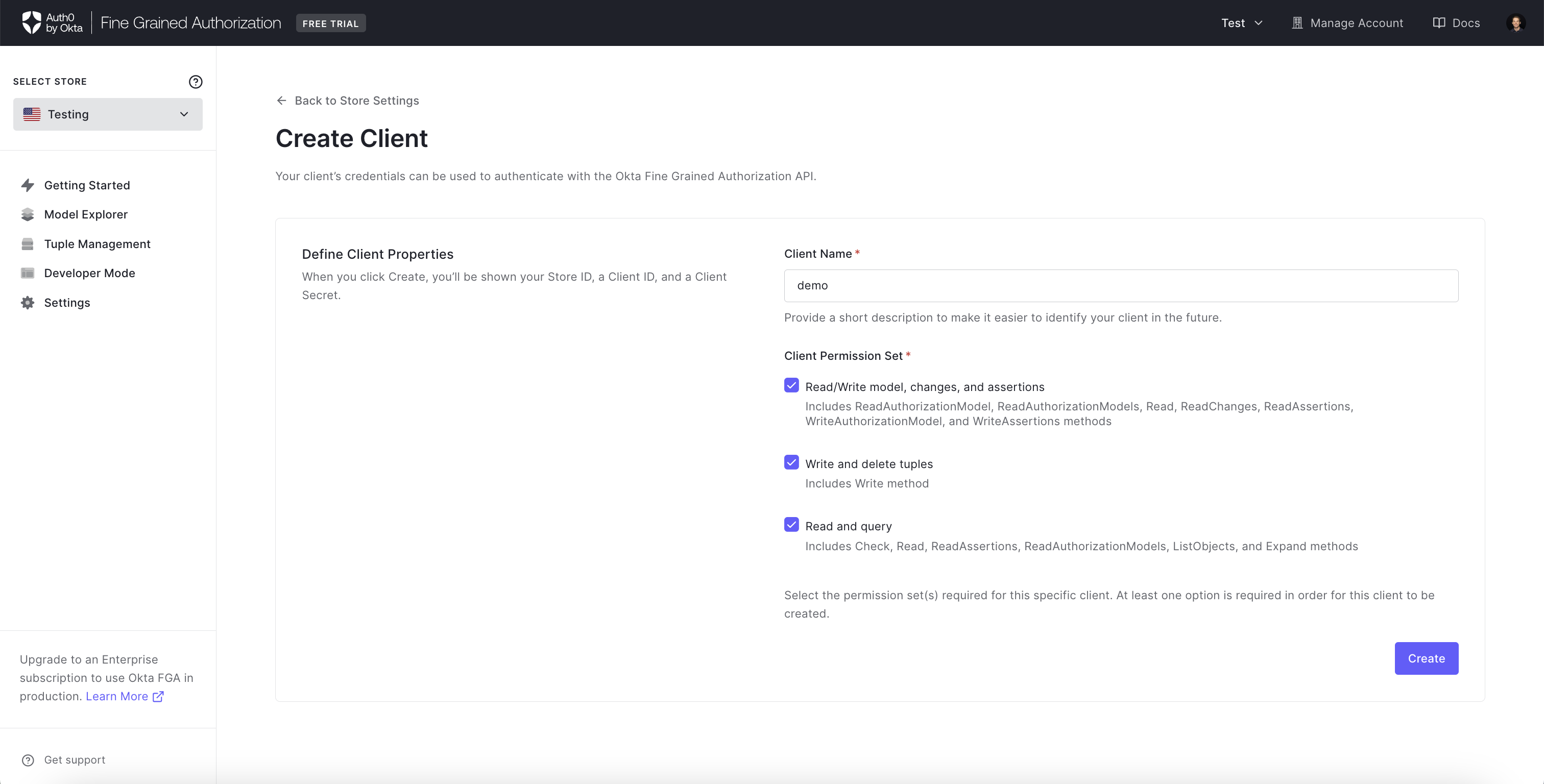
- Enter the client name in the provided text box. This client name will make it easier to identify your clients in the future.
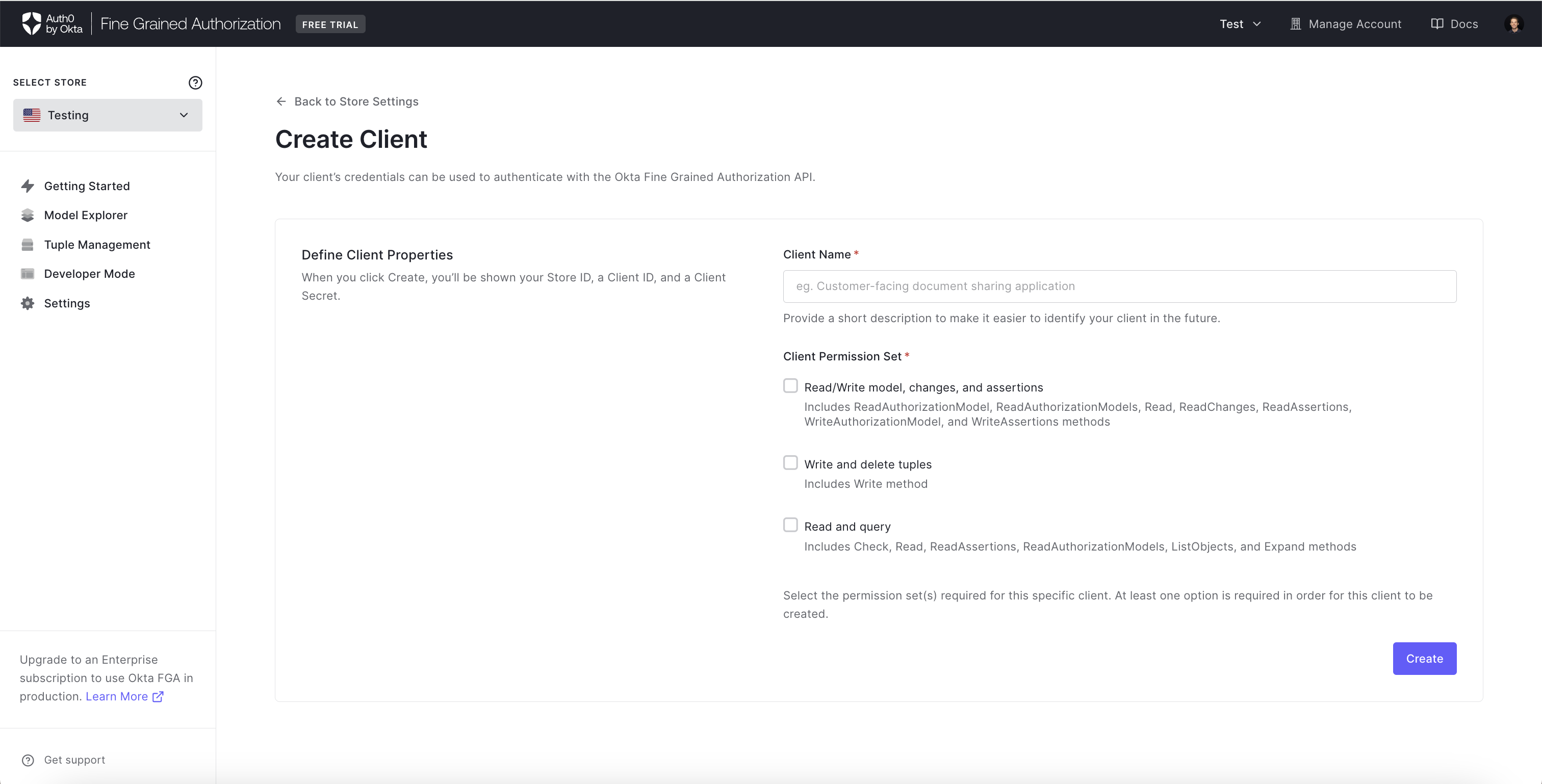
- Select the permission set(s) required for this specific client. Click the Create button when done.
- A popup window will confirm the client has been successfully created. Make sure to copy the Store ID, Client ID, and Client Secret values. Click Continue once you have saved these values in a secure location.
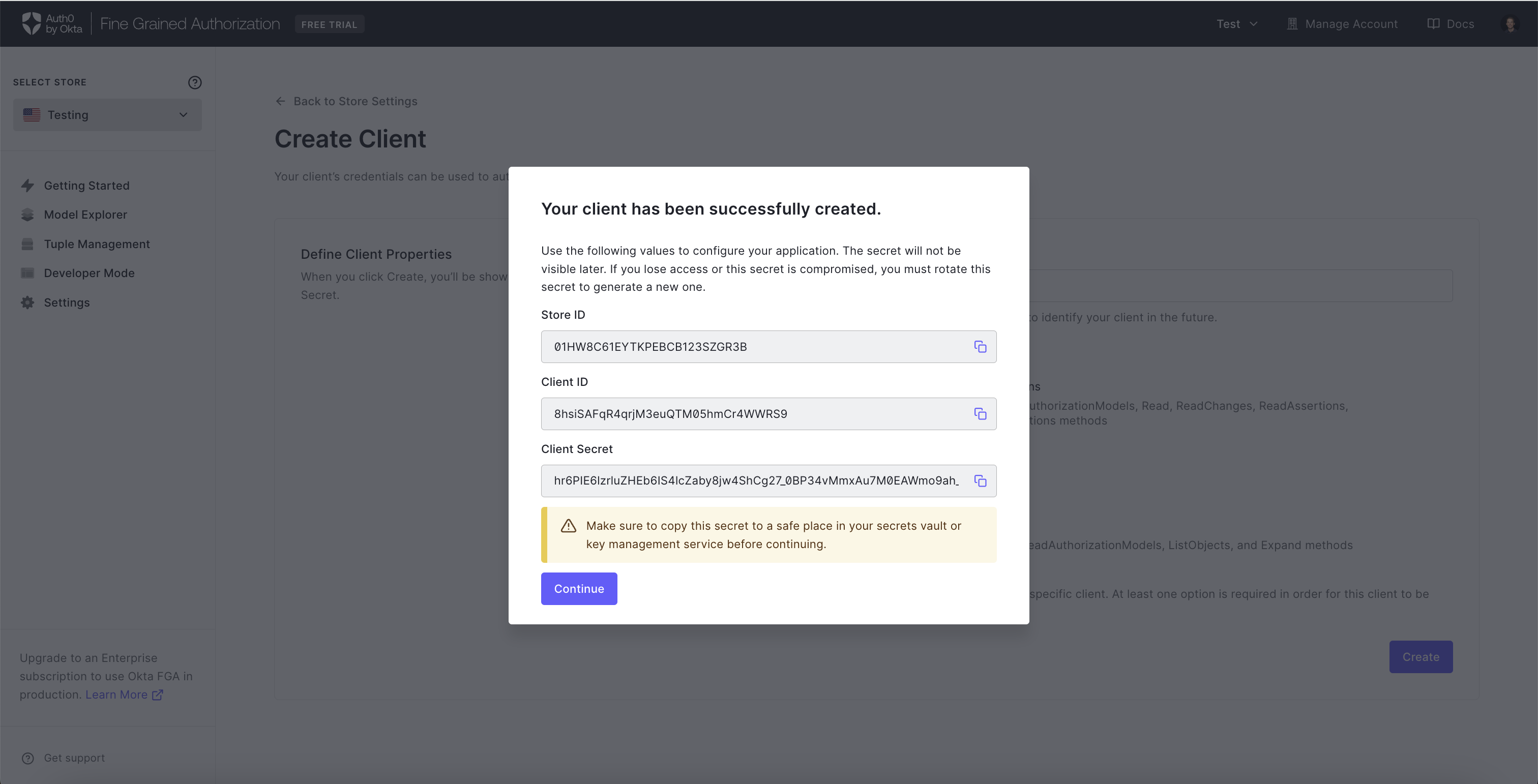
You will not be able to see the client secret again after this step. It will need to be regenerated if it is ever lost or compromised in any way.
- To update the secret to a new value, click **Manage ** then Rotate Secret in the Manage Client page.
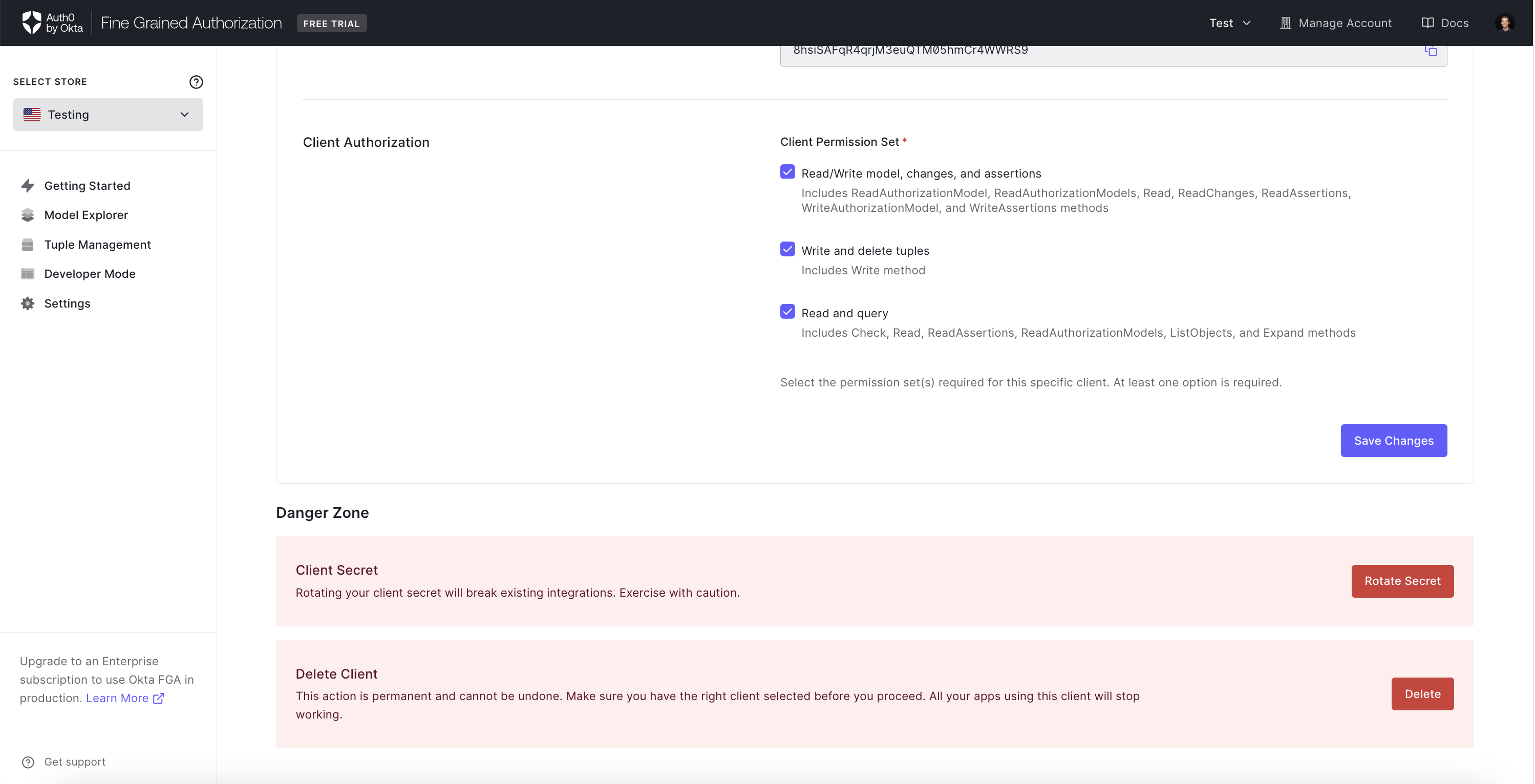
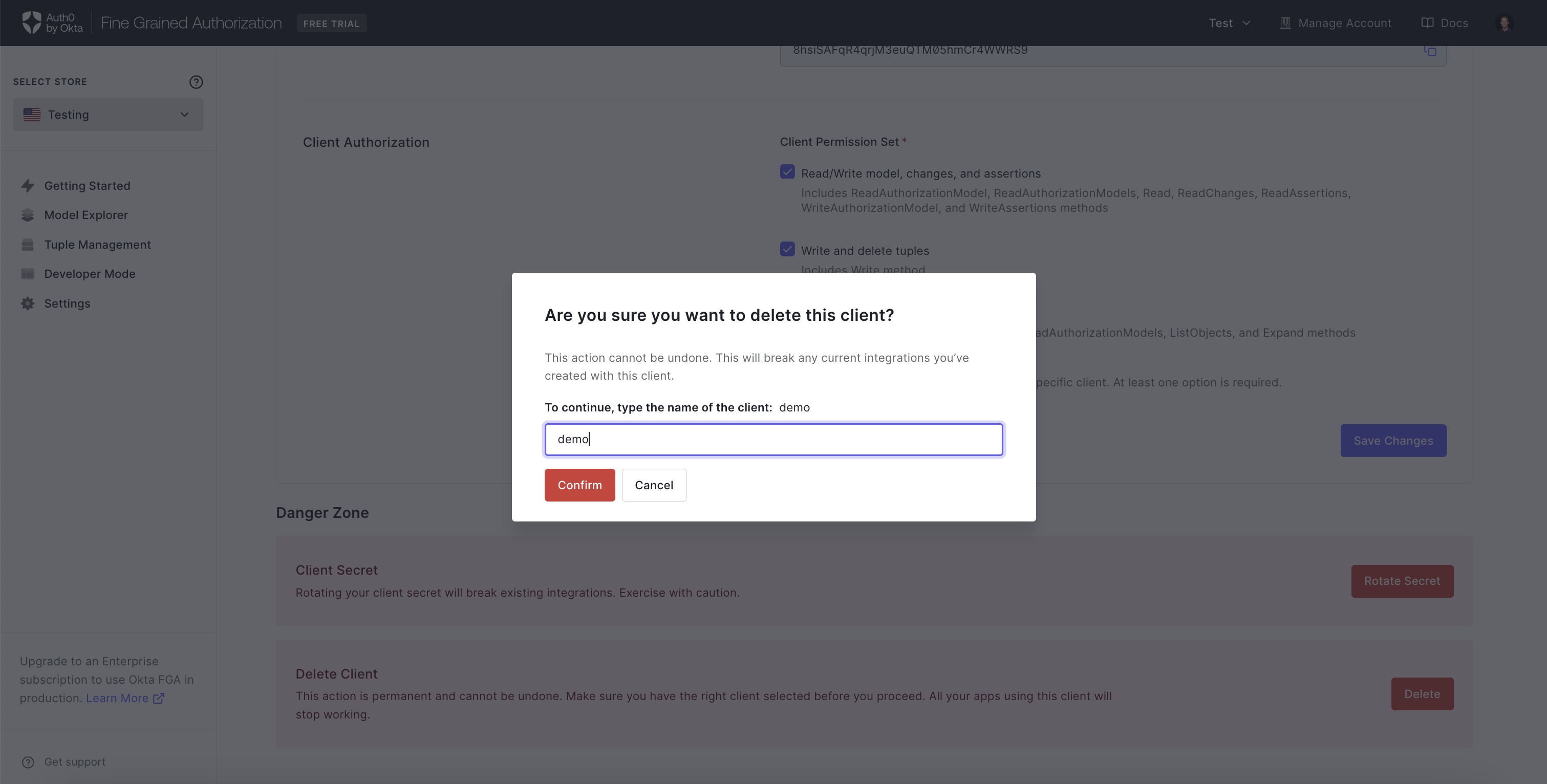
- To remove the client, click Delete Client in the Manage Client page.
Grant Authorized Clients Access to Write Specific Modules
Modular Models documentation allows organizations to structure their authorization model into distinct modules. This enables teams to manage their authorization models and better enforce team ownership using functionality in their CI/CD of choice (e.g. GitHub and GitLab's CODEOWNER's file).
Per-module Authorization, builds on top of that to offer fine-grained control over which modules an authorized client can write, so that each team would only be able to write to the modules they own and affect the authorization data under their jurisdiction without affecting other team's. For example, the YouTube and GDrive teams or the Confluence and JIRA teams would be able to write tuples that affect their authorization decisions, but not modify the other team's data.
In order to make use of the new Modular Authorization feature, you need to:
-
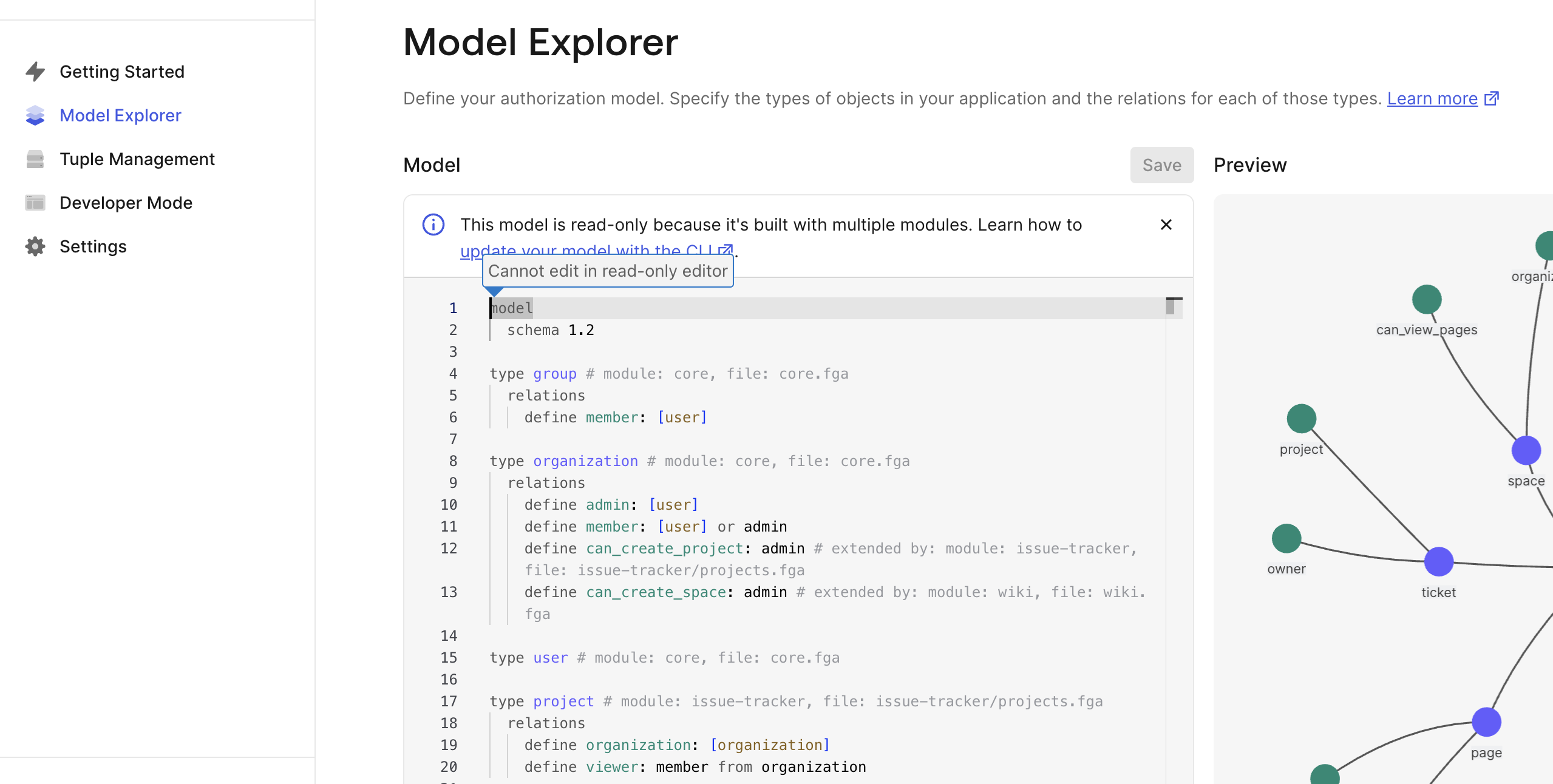
Have a model that involves modules (refer to the Modular Models documentation). You can ensure that your model is modular by checking the Model Explorer section in the dashboard. The model should be showing up as a 1.2 model and be readonly (we only allow uploading and editing modular models through the API or CLI), you should also see comments annotating each type with the module related to it.
-
Create an authorized client as described in the Create Authorized Clients section.
-
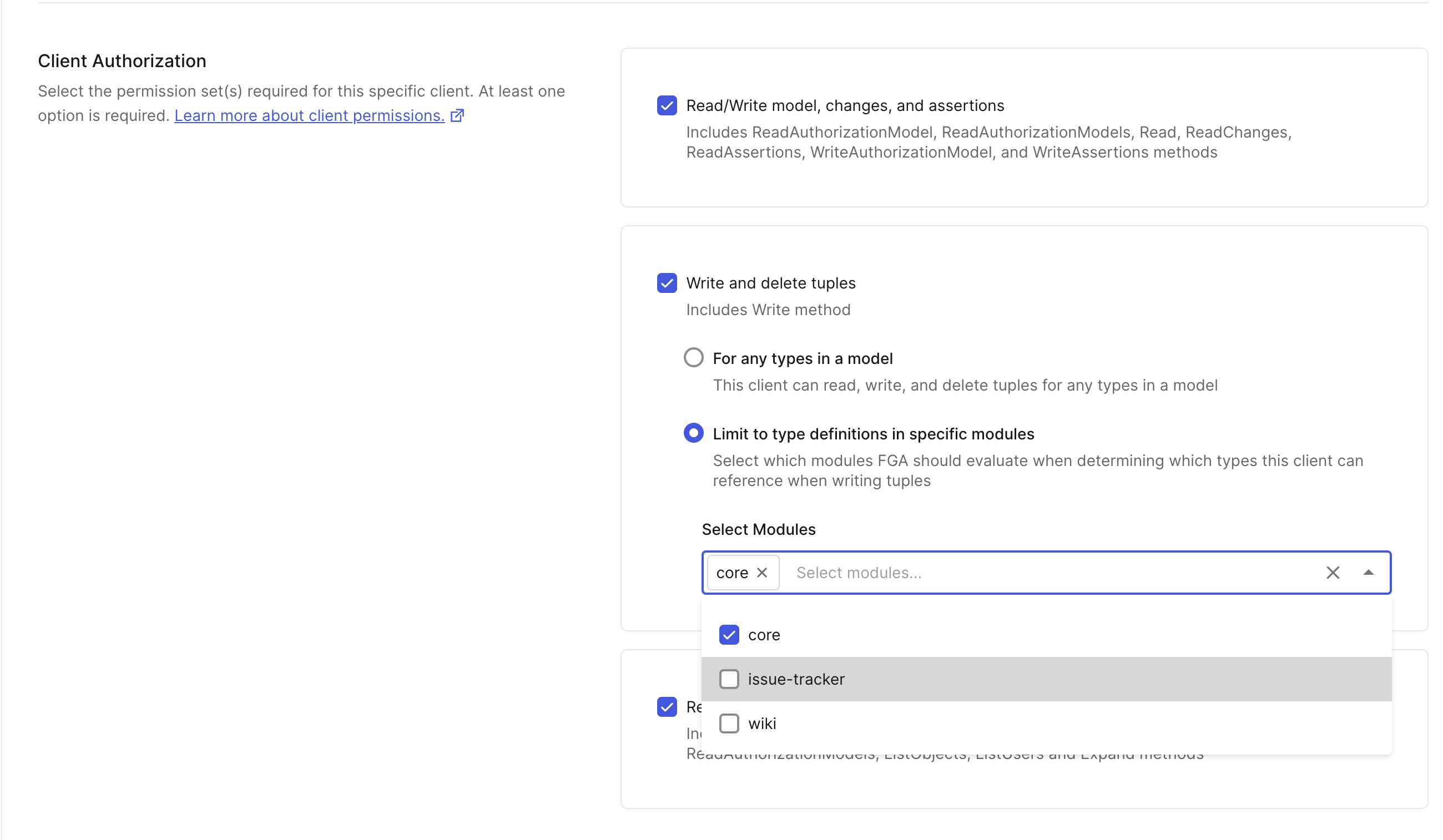
When creating or editing an authorized client, you will now see a choice when selecting "Write and delete tuples" permission:
a. For any types in a model: This is the default behavior (the same one as when modules are not available), where the client can write to any type and relation in the current model or any previous or future model. b. Limit to type definitions in specific modules: This is the new behavior, where the client can only write to the types and relations that are part of the selected modules. You can select up to 15 modules.
A tuple is marked as belonging to a module if the object type or relation it references is part of that module, for example - for the following model:
model
  schema 1.2

type user # module: core, file: core.fga

type organization # module: core, file: core.fga
  relations
    define admin: [user]
    define member: [user] or admin
    define project_creator: [user] or admin # extended by: module: issue-tracker, file: issue-tracker/projects.fga
    define space_creator: [user] or admin # extended by: module: wiki, file: wiki.fga
The following tuples:
user=user:anne, relation=member, object=organization:contoso: is in thecoremodule, because the organization type is in thecoremodule and the member relation under it is not extended by any other module.user=user:anne, relation=project_creator, object=organization:contoso: is in theissue-trackermodule, because although the organization type is in thecoremodule, the project_creator relation under it is extended by theissue-trackermodule.user=user:anne, relation=space_creator, object=organization:contosois in thewikimodule, because although the organization type is in thecoremodule, the space_creator relation under it is extended by thewikimodule.
Limitations:
- You can only grant a client access to a maximum of 15 modules
- For a client that only has access to modules (as in not the "For any type"), during writes you can only send tuples that are part of a single module. If you send tuples that are part of multiple modules, the request will be rejected.
Module selections would apply to the matching type and relation in the current version of the model or any previous or future versions. For example, if you have the documents module, and you create a client with Write permission to this module, and then you remove that module from the model, the client will still be able to write the tuple if it is targeting the previous model. If you later introduce a new model with a similarly named module, the client will have access to write to it.
We recommend that you delete all client permissions for every module you delete.
Delete a store
To delete a store:
-
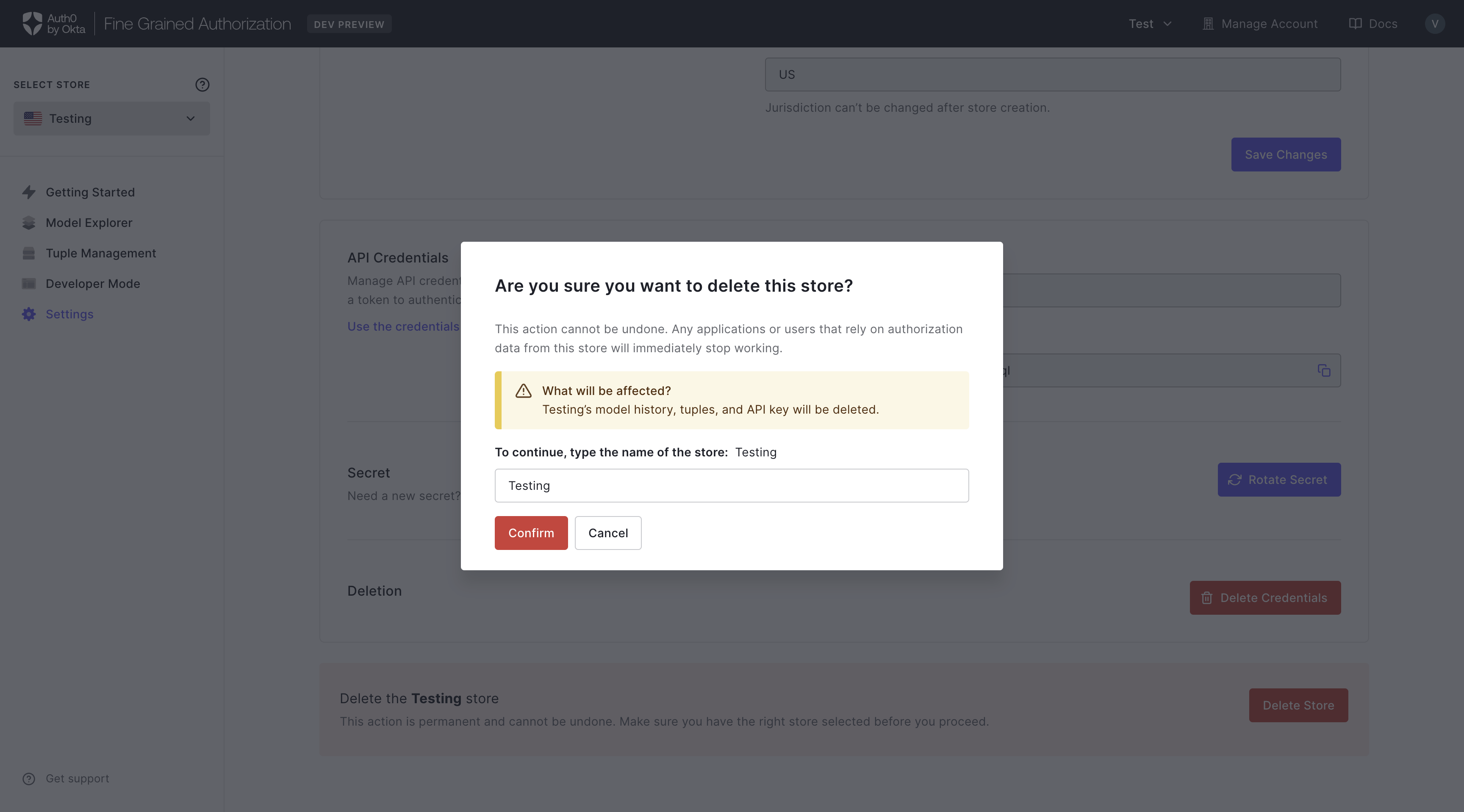
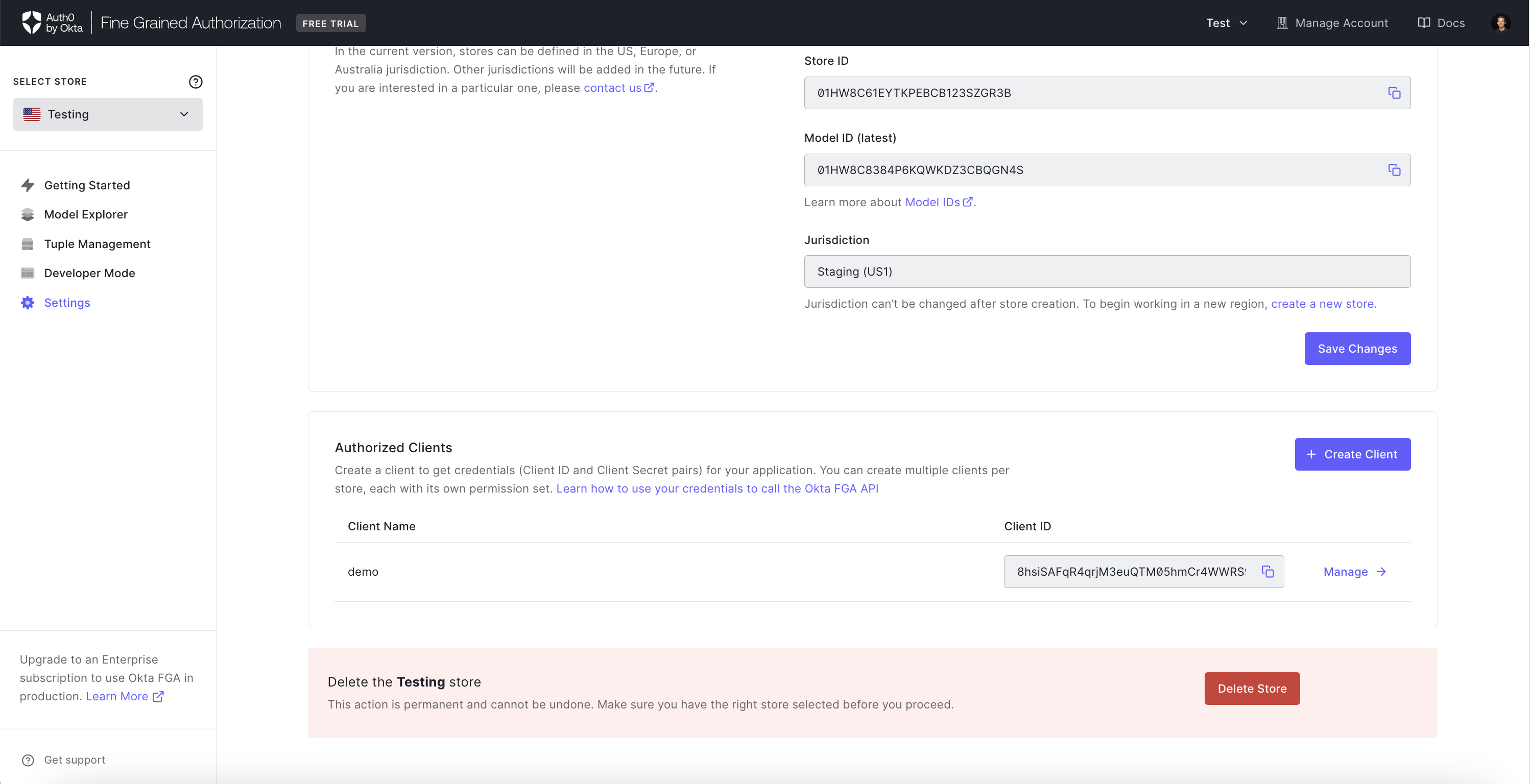
Click the Delete Store button
-
A pop-up appears warning you that this will permanently delete the store model, tuples, and API keys.
-
Enter the Store Name and click Confirm.