

Who can manage members?
- Account Owners: can invite members, grant or revoke account ownership, and remove members.
- Group Managers: can invite members and manage group membership, but cannot invite someone as an Account Owner and cannot change or remove Account Owners.
- Store Editors and Store Viewers: cannot invite or manage members. If you are a Store Editor or Store Viewer, to add someone to your account, ask an Account Owner or Group Manager.
Invite members
To add a new person to your account:- Navigate to Account > Members.
- Select Invite New Member.
- Enter the member’s email address.
- If you are an Account Owner, you will see the option to invite someone as an Account Owner or a Member. Most members should be invited as Member and then added to the appropriate group(s) after they accept the invitation.
- Click Invite.
After inviting a member
- The member receives an email with a link to accept the invitation.
- You can monitor the invitation status in the Members tab — PENDING until the member accepts, then ACTIVE.
- After the member accepts, add them to the appropriate group(s) via Account > Groups. The member inherits the roles and store access defined by those groups.
- New members who have not yet been added to a group will see a welcome page when they first log in to the Dashboard. From here, they can explore the FGA documentation and learn about the product. To get access to stores, they should reach out to an Account Owner or Group Manager to be added to a group.
- Members must be added to at least one group with a store role to access any stores.
Inviting a member as Account Owner
Only existing Account Owners can see the Account Owner role option. Group Managers cannot invite members as Account Owners. In step 4, if you select Account Owner instead of Member, the Dashboard displays a warning. Review the warning carefully before proceeding.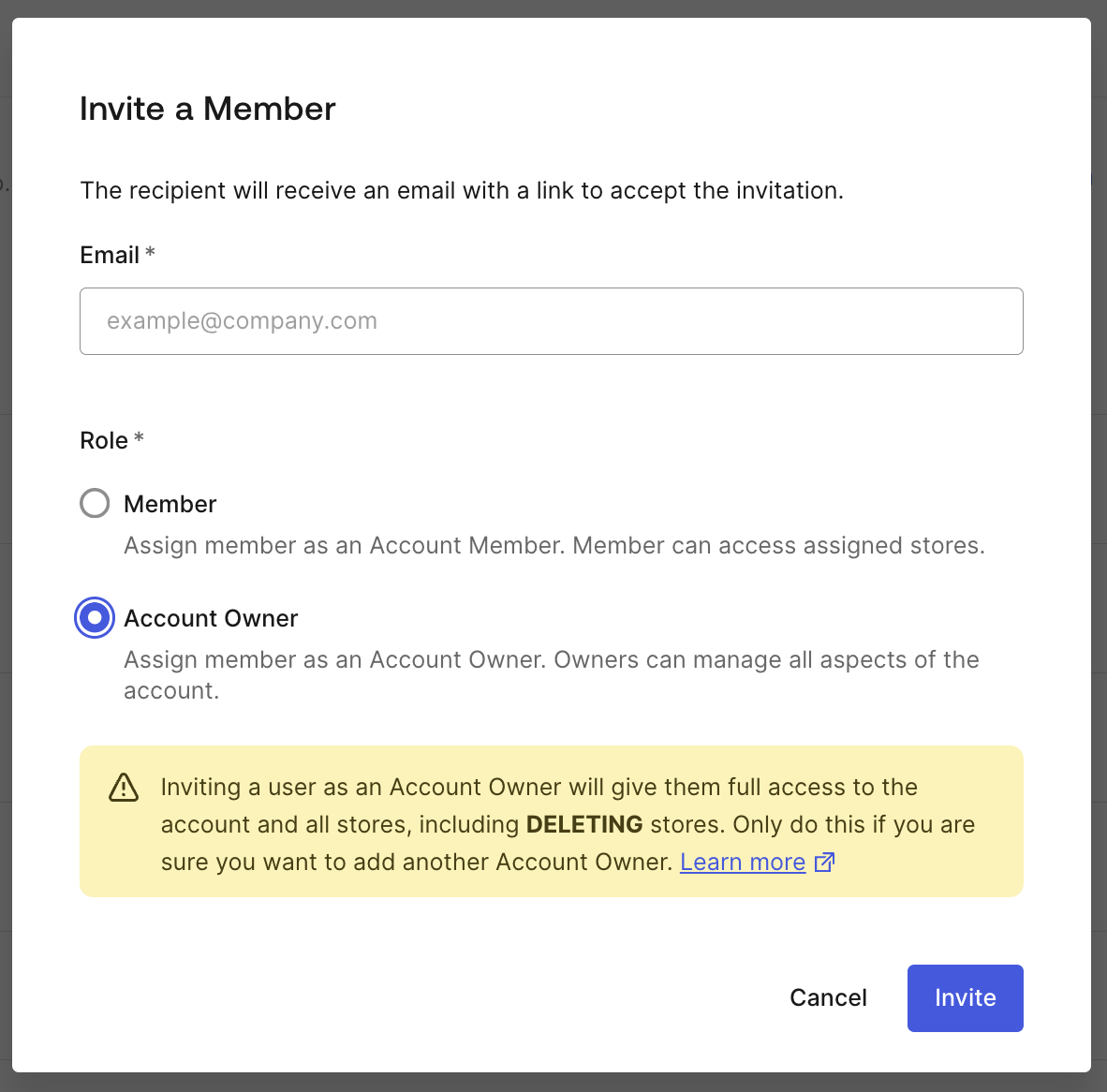 Only do this when the member truly needs super-admin privileges, such as another administrator who will manage the entire FGA account. Account Owners can:
- Create and delete stores
- Create, edit, and delete groups
- Invite and remove any member
- Grant or revoke Account Owner access to other members
- Modify all authorization models, tuples, and assertions in all stores
Grant or change Account Owner access
Only an Account Owner can grant or remove Account Owner access for another member.Grant Account Owner access
- Navigate to Account > Members. Find the member you want to update.
- Click the menu button at the end of the member’s row. Select Assign Account Owner role and confirm.
Remove Account Owner access
To demote an Account Owner back to a regular member:- Navigate to Account > Members. Find the Account Owner you want to demote.
- Click the menu button at the end of the member’s row. Select Remove Account Owner role and confirm.
A Group Manager cannot promote members to Account Owner or remove the Account Owner role from a member. The system also prevents removing the Account Owner role from the last remaining Account Owner.
Remove members
Account Owners and Group Managers can remove members from the account.- Navigate to Account > Members. Locate the member.
- Click the menu button at the end of the member’s row. Select Remove from account and confirm.
- Group Managers cannot remove Account Owners or themselves from the account.
- To prevent lockout, Account Owners cannot remove themselves nor downgrade their own Owner role. Ask another Account Owner to do that.
- The system also prevents removal of the last remaining Account Owner — there must always be at least one Account Owner on the account.
View your role
To see what role you have in the account:- Navigate to Account > Members.
- Find your name in the members list.
- Check the Account Owner column — if it is checked, you are an Account Owner.
- Check the Groups column to see which groups you belong to. Your permissions are determined by the roles assigned to those groups.
Limits
- Maximum 30 members per account.