Create new store
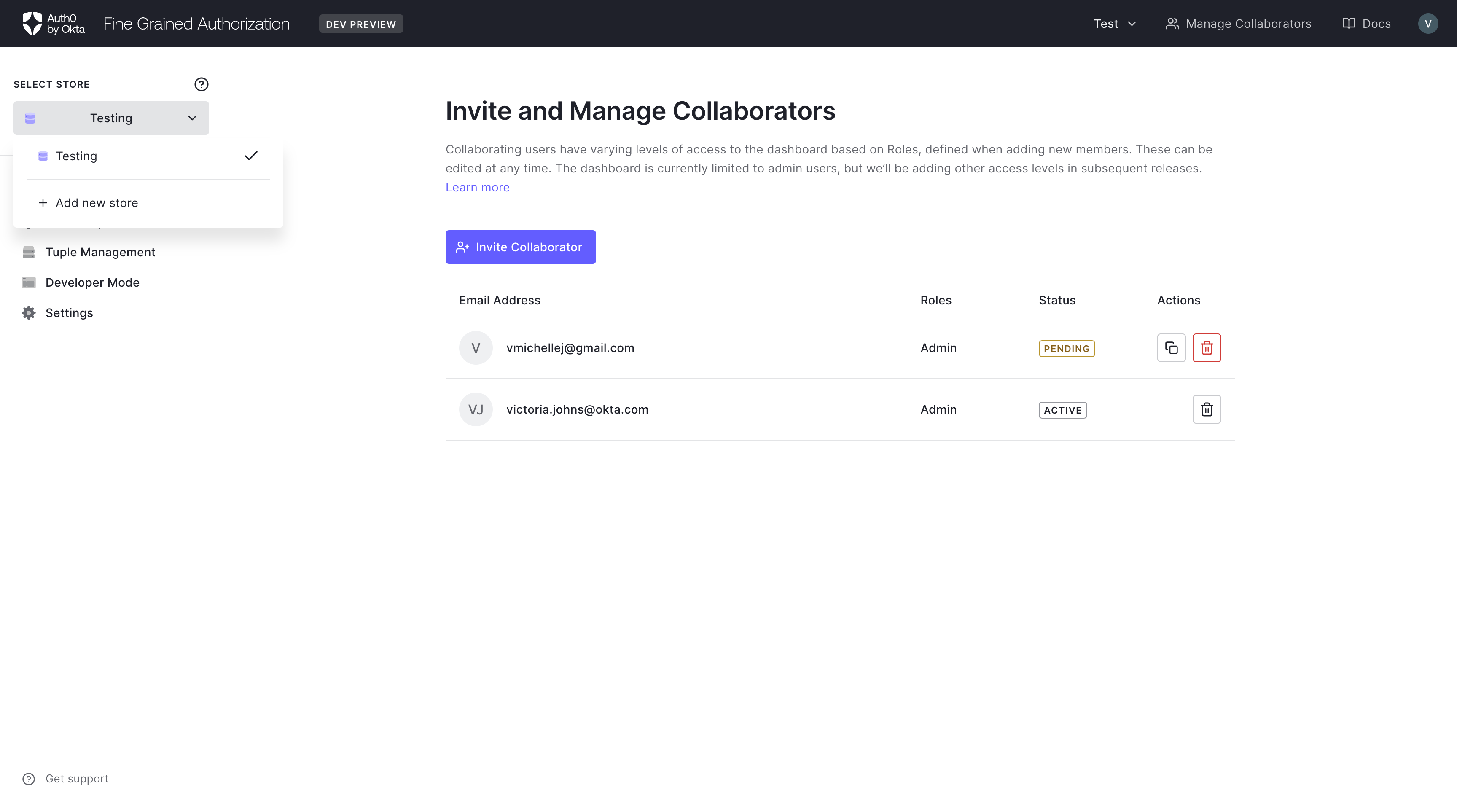
The FGA dashboard allows you to create more than one store by clicking the STORES selector at the left side of the dashboard interface. Any user with access to the Customer Account you are in will have access to the newly created store.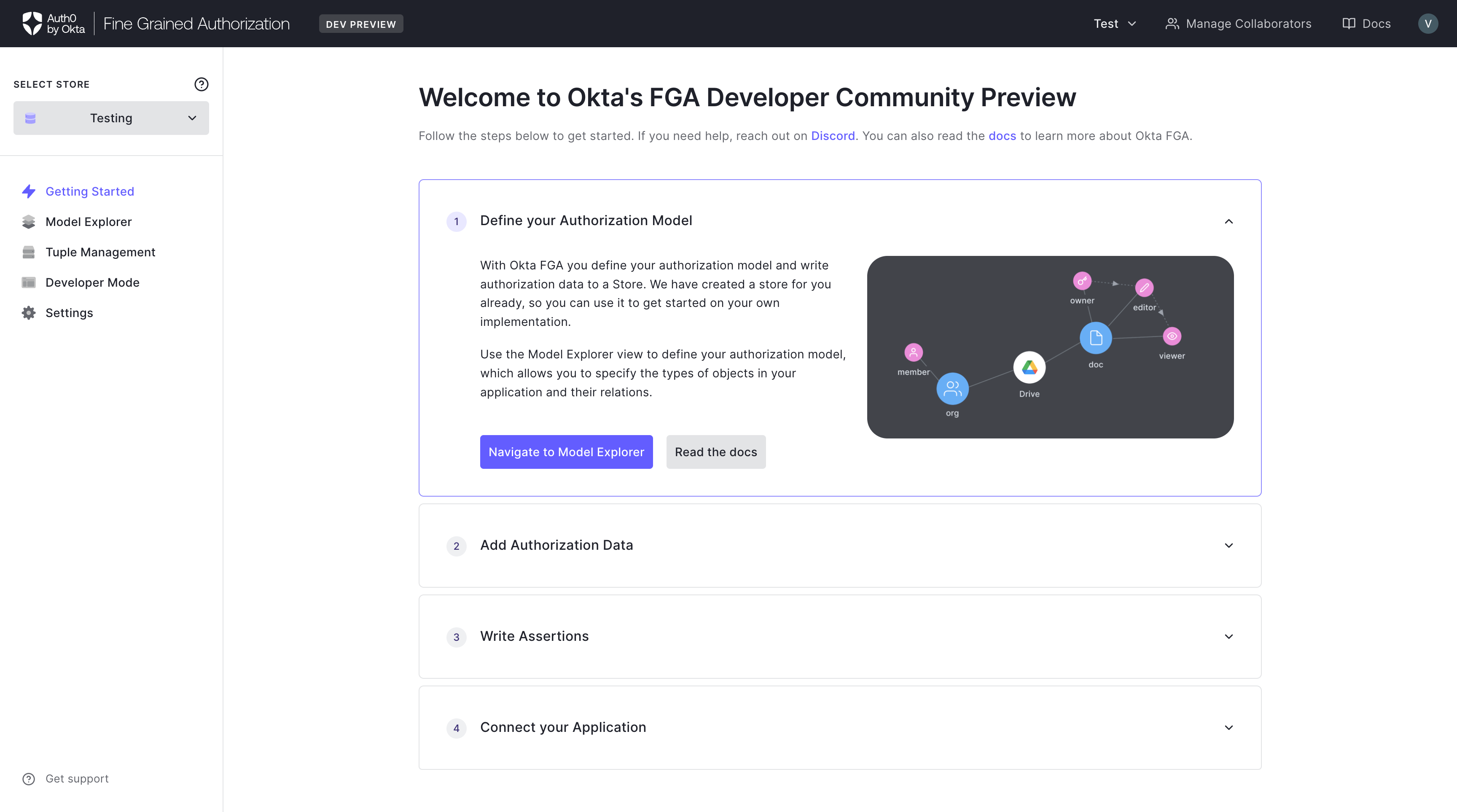
- Select Create new store in the store selector drop down menu.
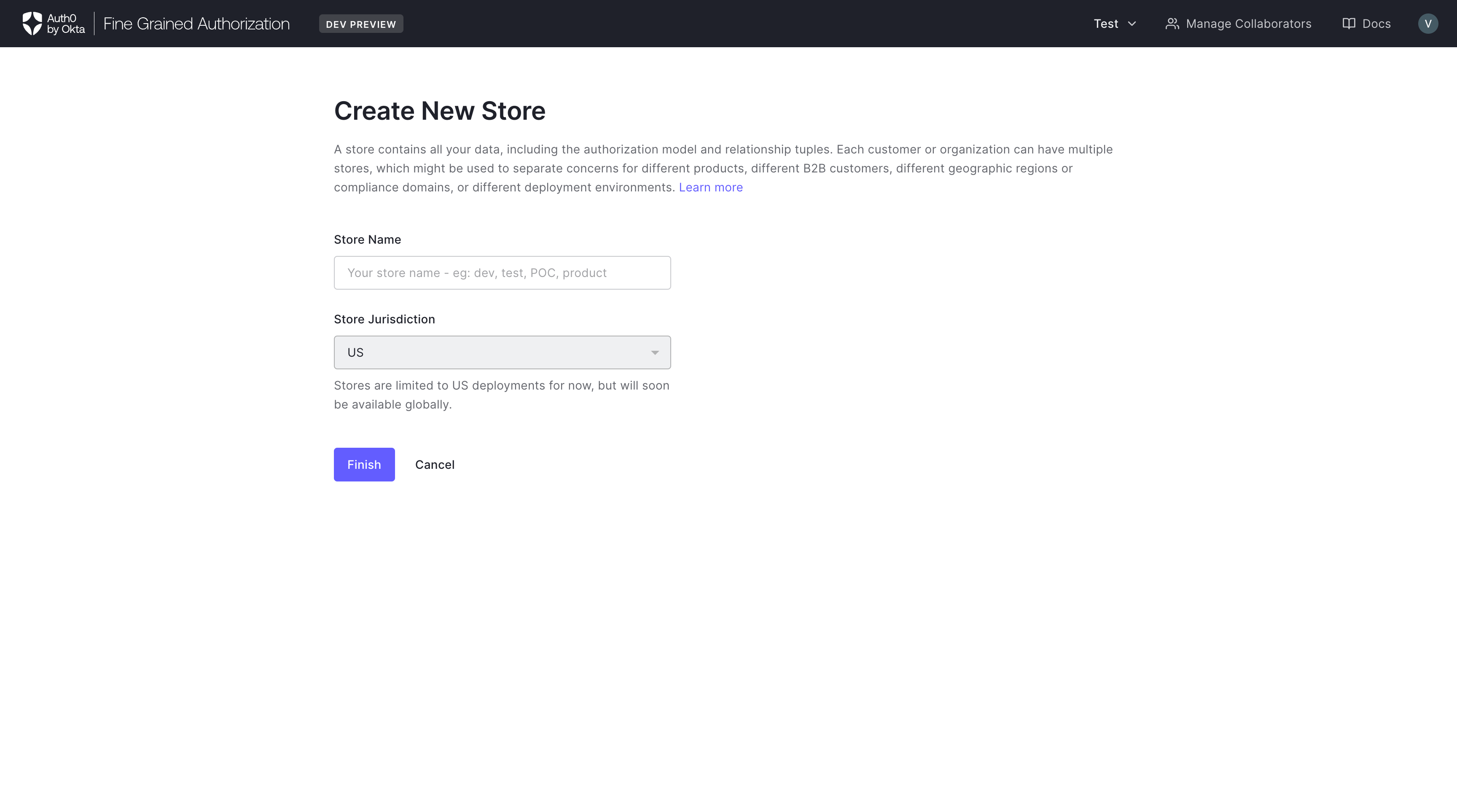
- Enter the desired store name in the Create New Store page and click Finish.
Switching between stores
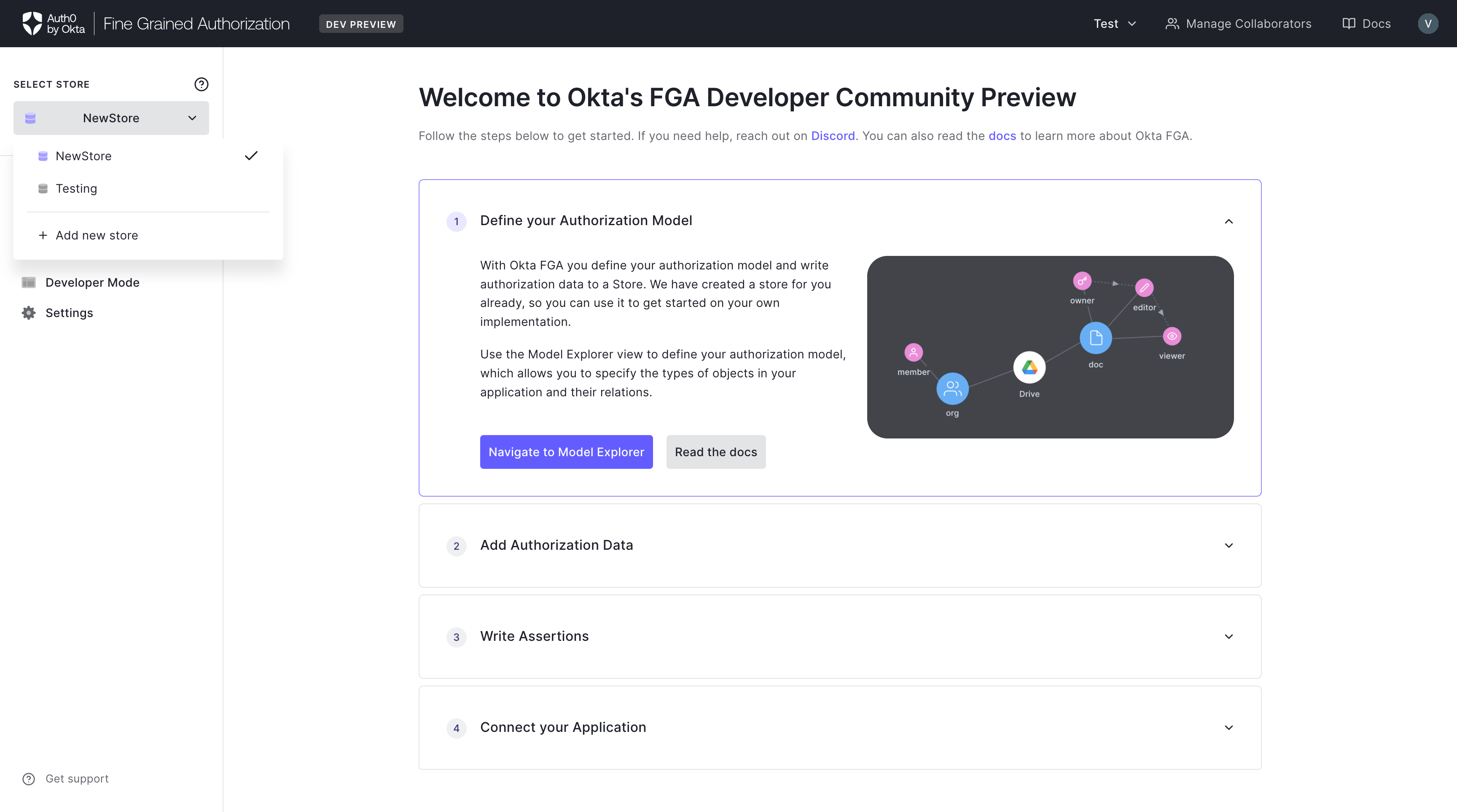 When you have more than one stores, you may switch between these stores by clicking the store selector, and selecting the store you would like to switch to.
Note: There is a known issue where the Dashboard only allows selecting between the first 6 stores created, we are working on a fix.
When you have more than one stores, you may switch between these stores by clicking the store selector, and selecting the store you would like to switch to.
Note: There is a known issue where the Dashboard only allows selecting between the first 6 stores created, we are working on a fix.
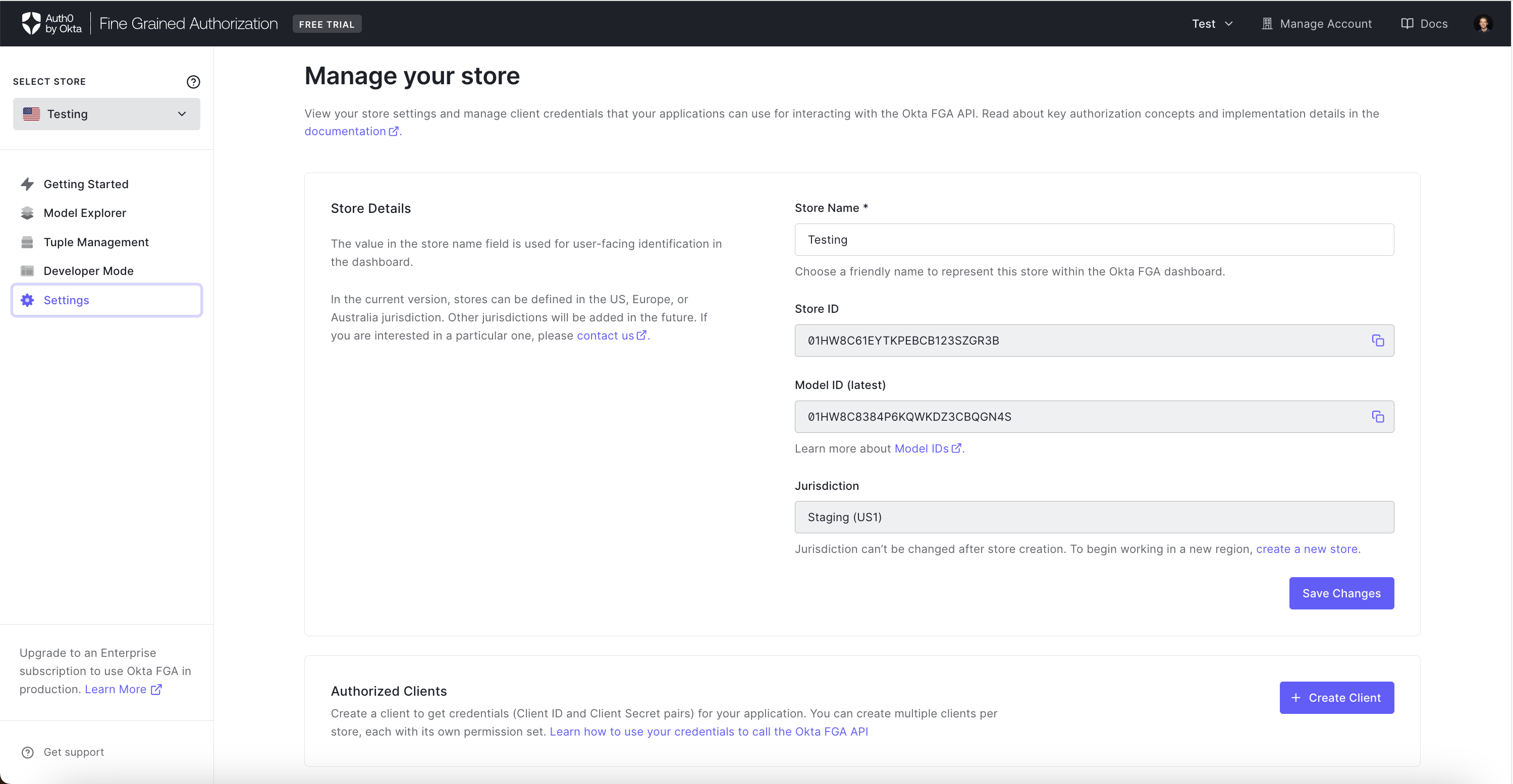
Manage store settings
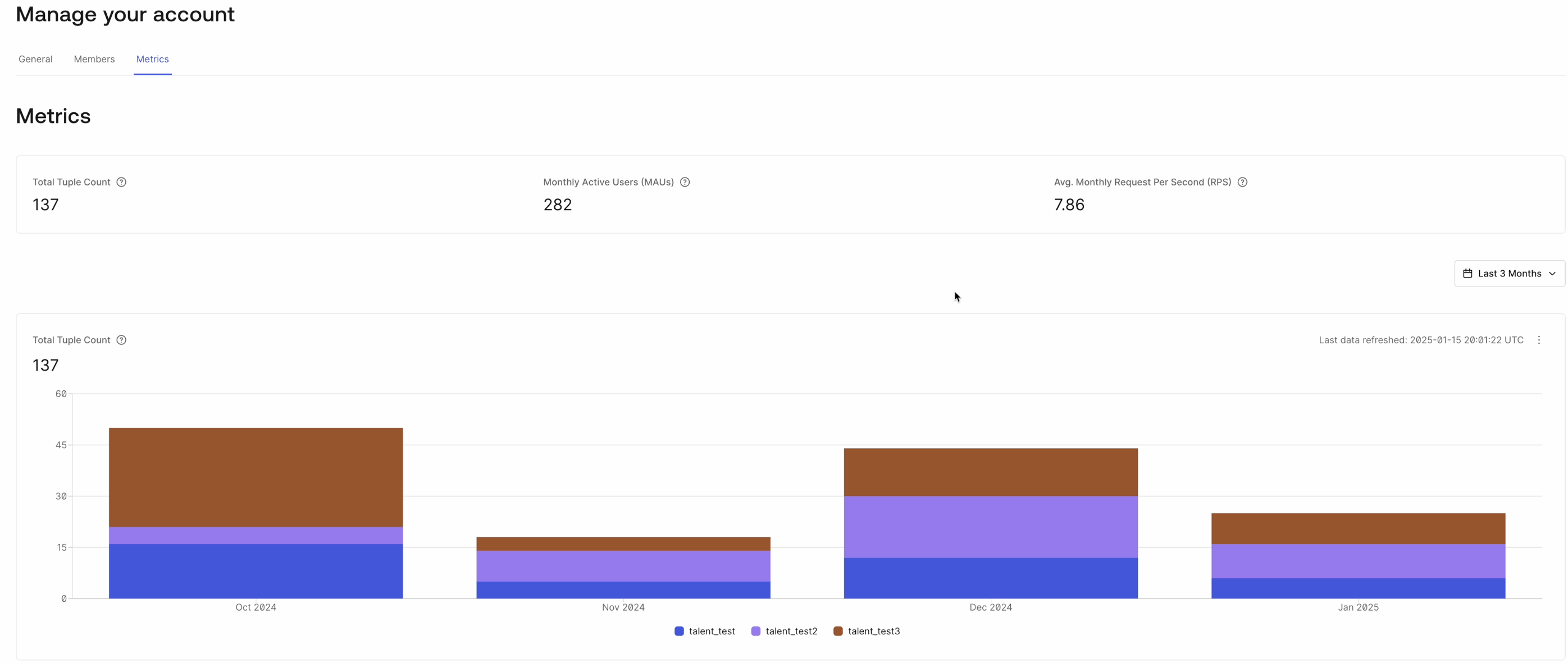 The Settings page allows you to view and update the store settings, such as the store name. The store name is used for user-facing identification in the dashboard. You may also generate Authorized Clients (ID and secret credentials) by choosing the Create Client button.