

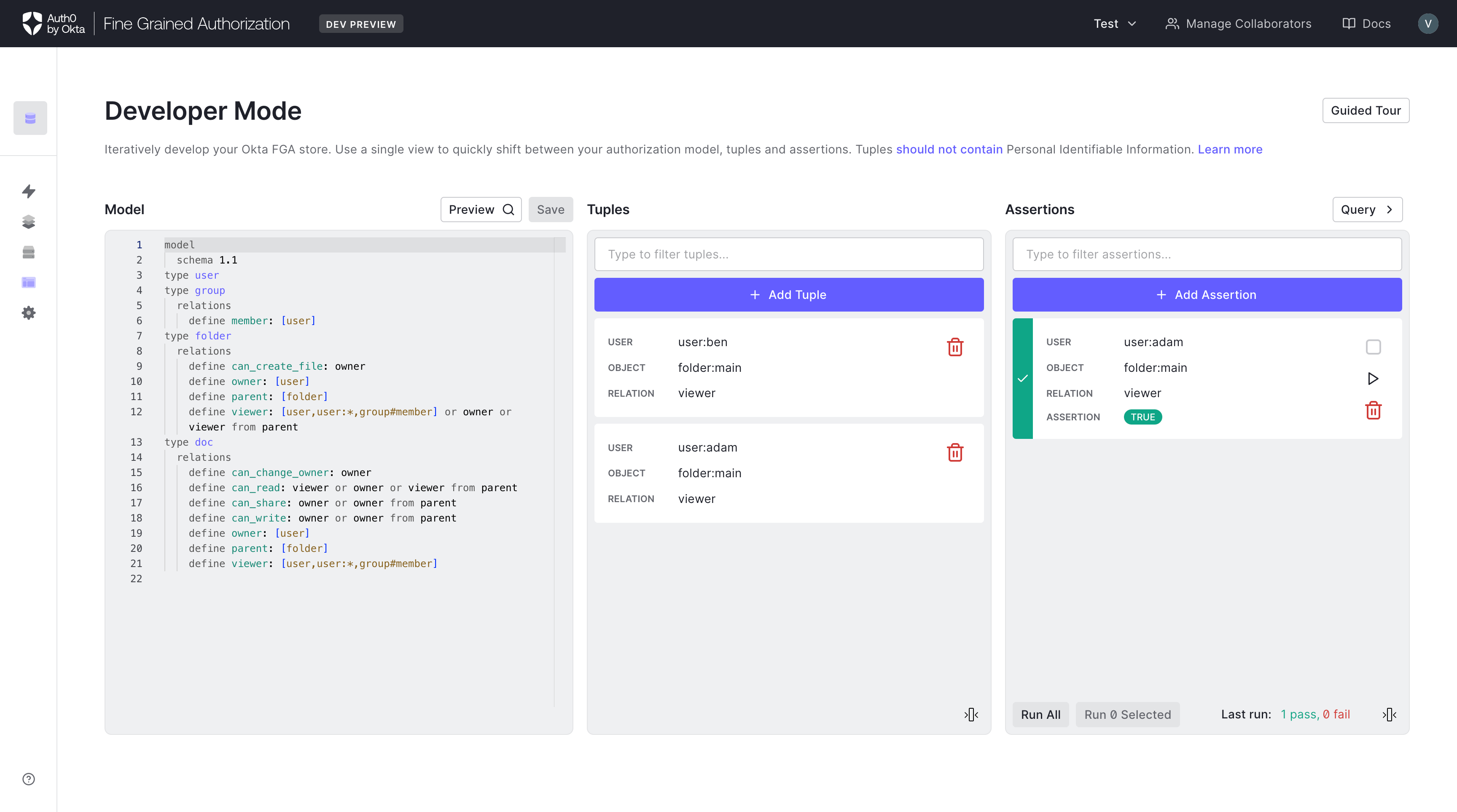
Adding assertions
-
In the developer mode page, you may run assertions to test authorization models and relationship tuples.
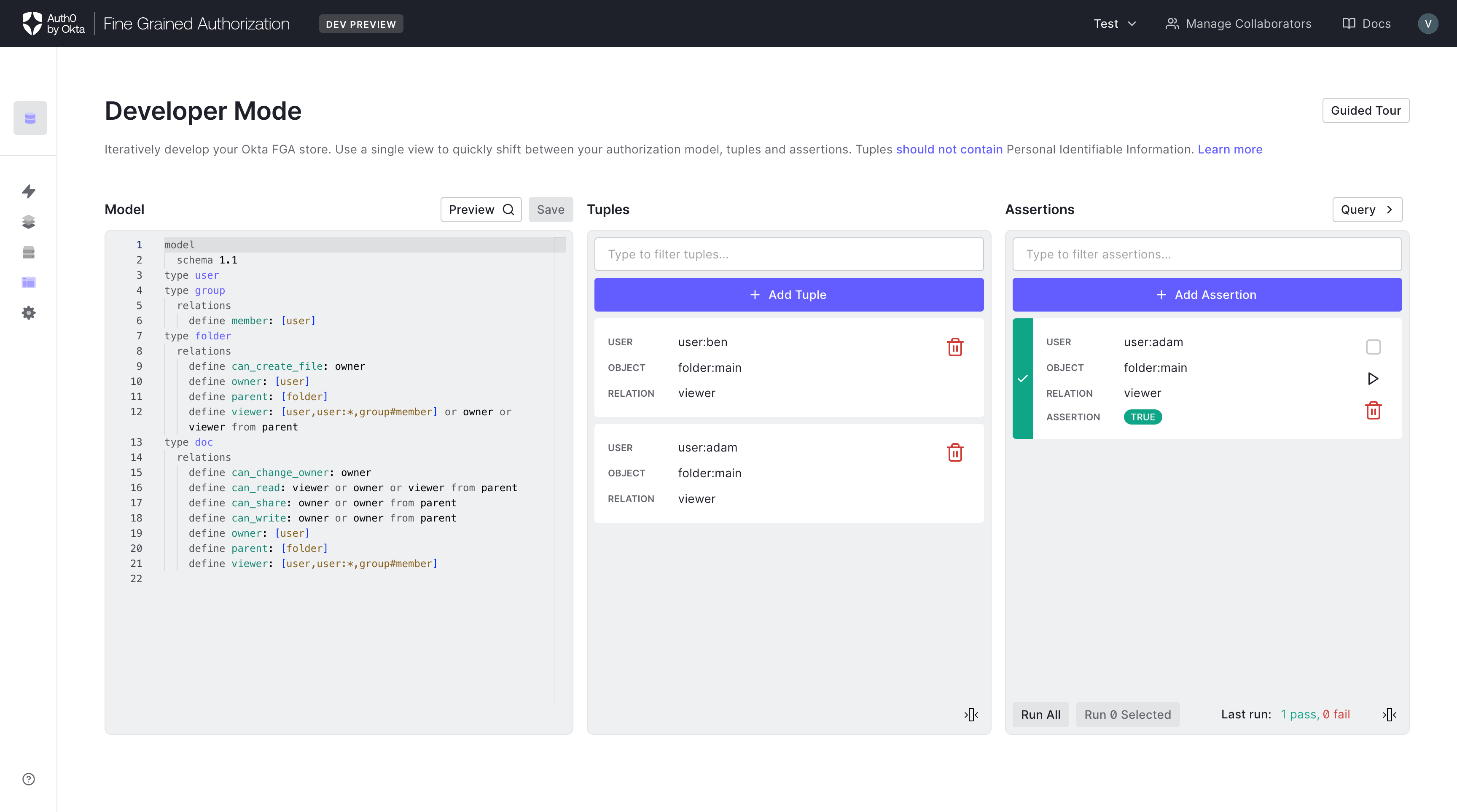
To add new assertions, click Add Assertion button in the Assertions Editor panel located on the right side of the screen.
-
This will bring up the text for User, Relation and Object. Type in the values
desired. Toggle the ASSERTION selection on (green) to indicate that you expect
the relationship to exist. Toggle the ASSERTION selection off (light gray) to
indicate that you expect the relationship not to exist.
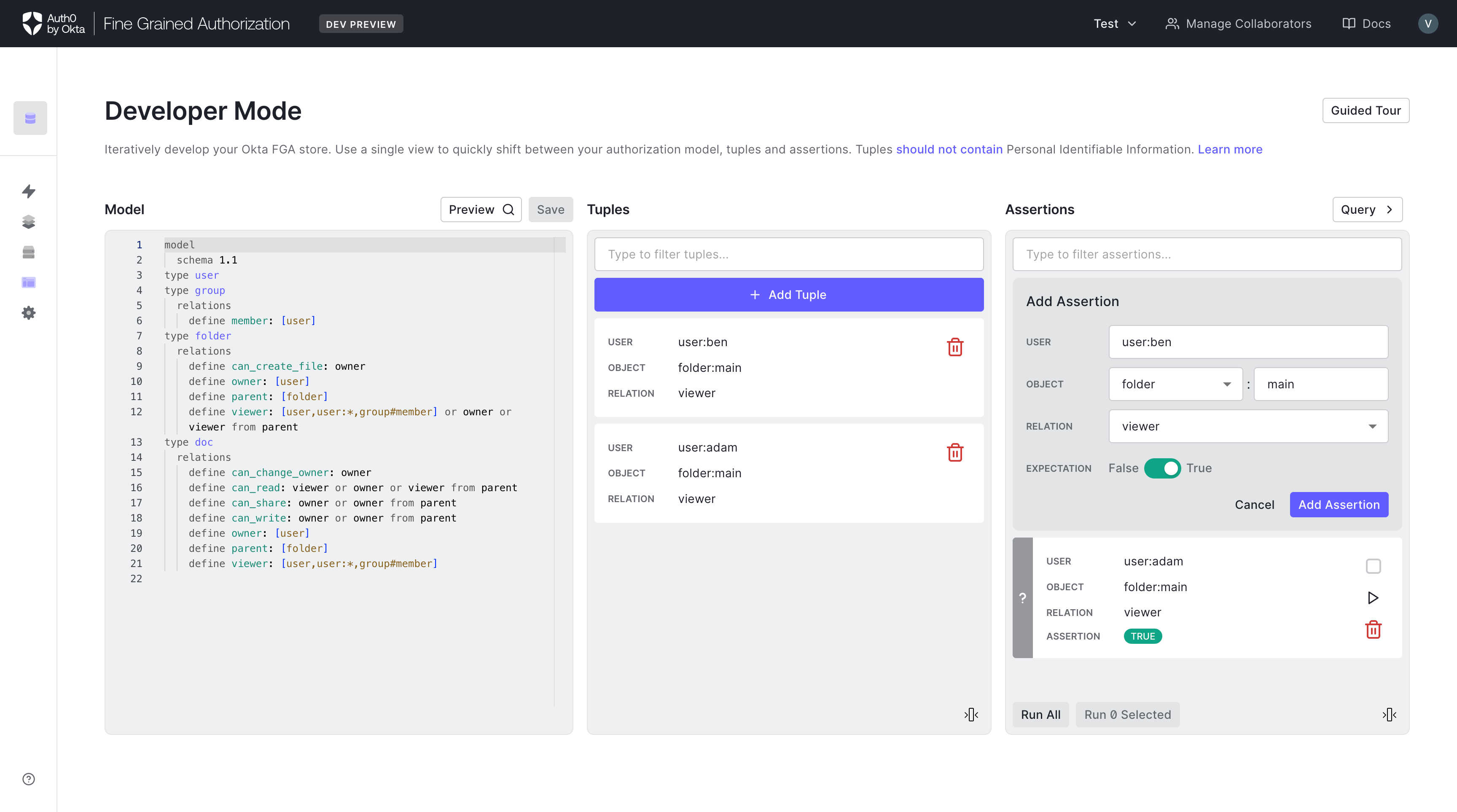
- Click check mark button to add the assertion. Click X button to cancel.
-
To test all assertions, click the Run All button.
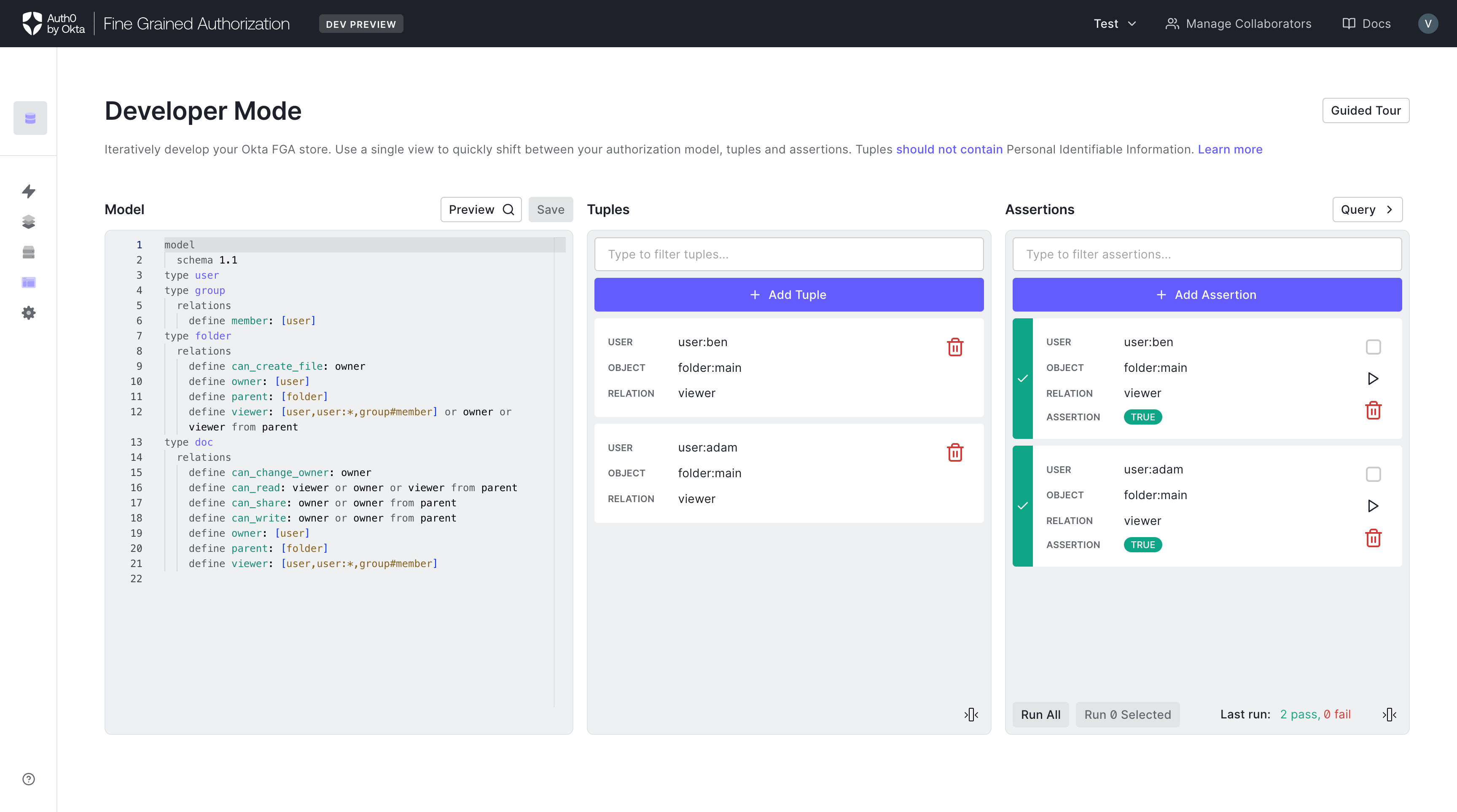
- You may also only test a subset of the assertions by selecting the desired assertions to test and clicking Run Selected.
- The result of the last assertions test will be shown at the bottom of the panel.
The Dashboard will only display a maximum of 100 tuples. This is a current limitation of the Dashboard view. Use the FGA CLI or API to retrieve all tuples.