-
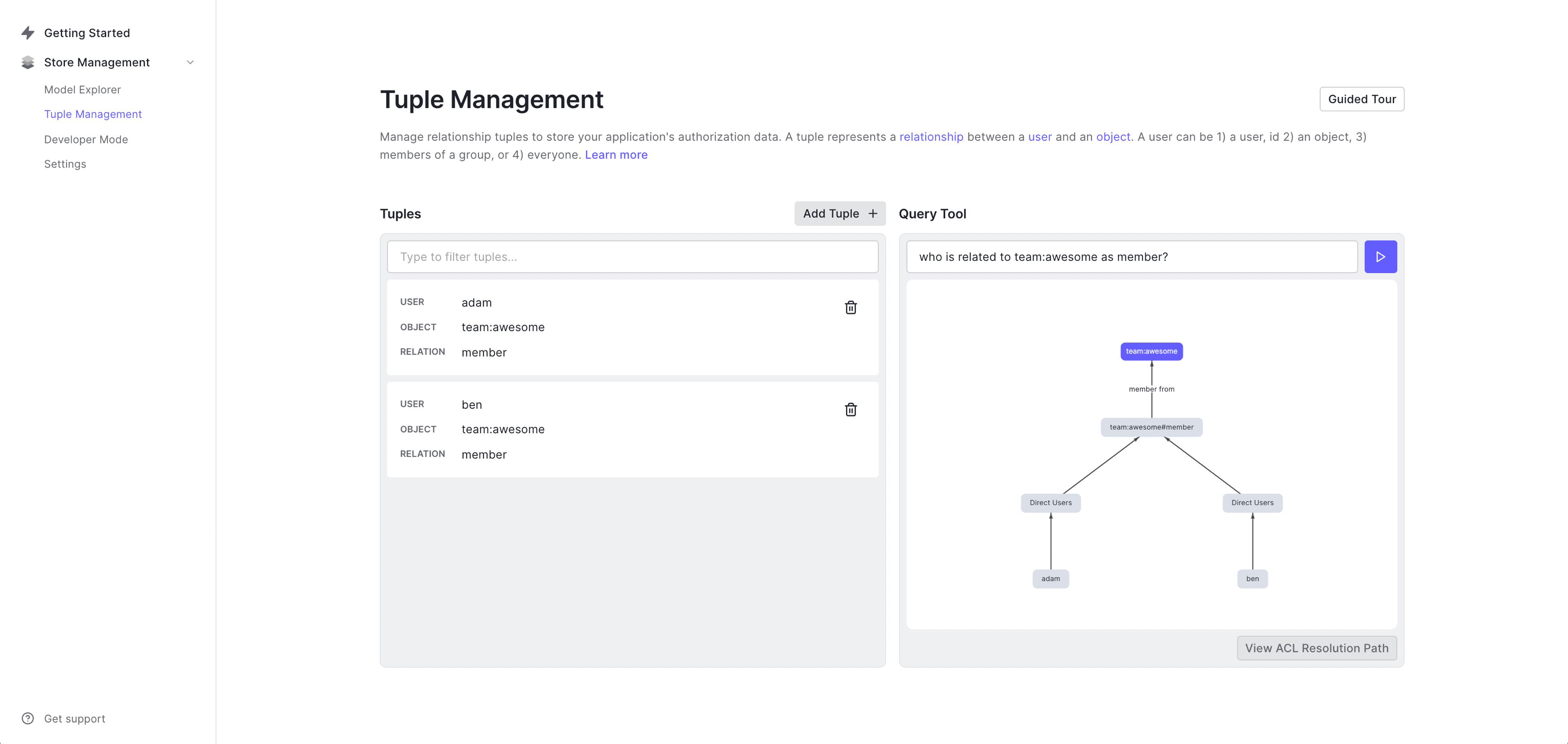
Go to the Tuple Management page or choose the Query Tool panel in the right part of the screen.
-
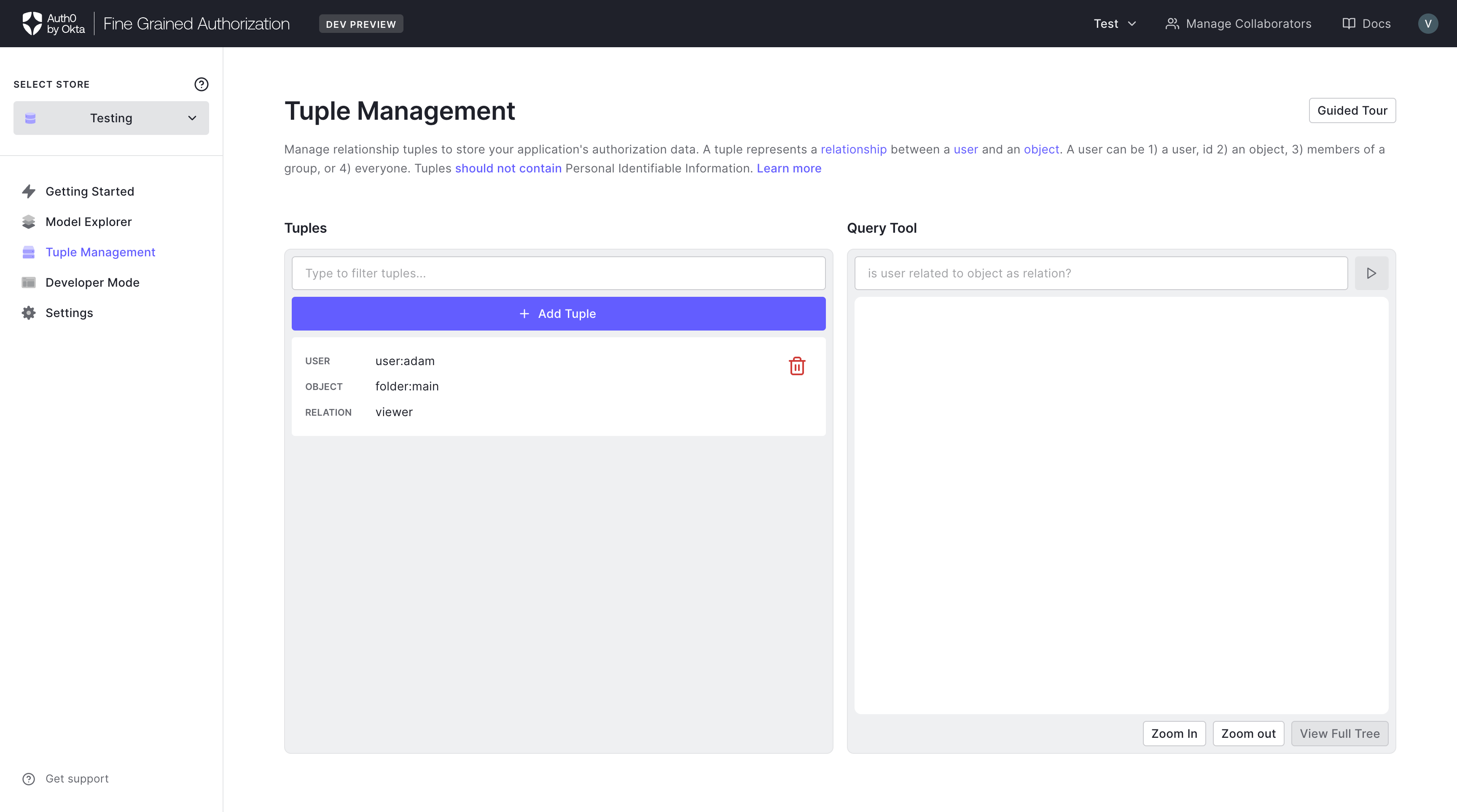
There is a textbox below the header Query Tool where you can type the query.
-
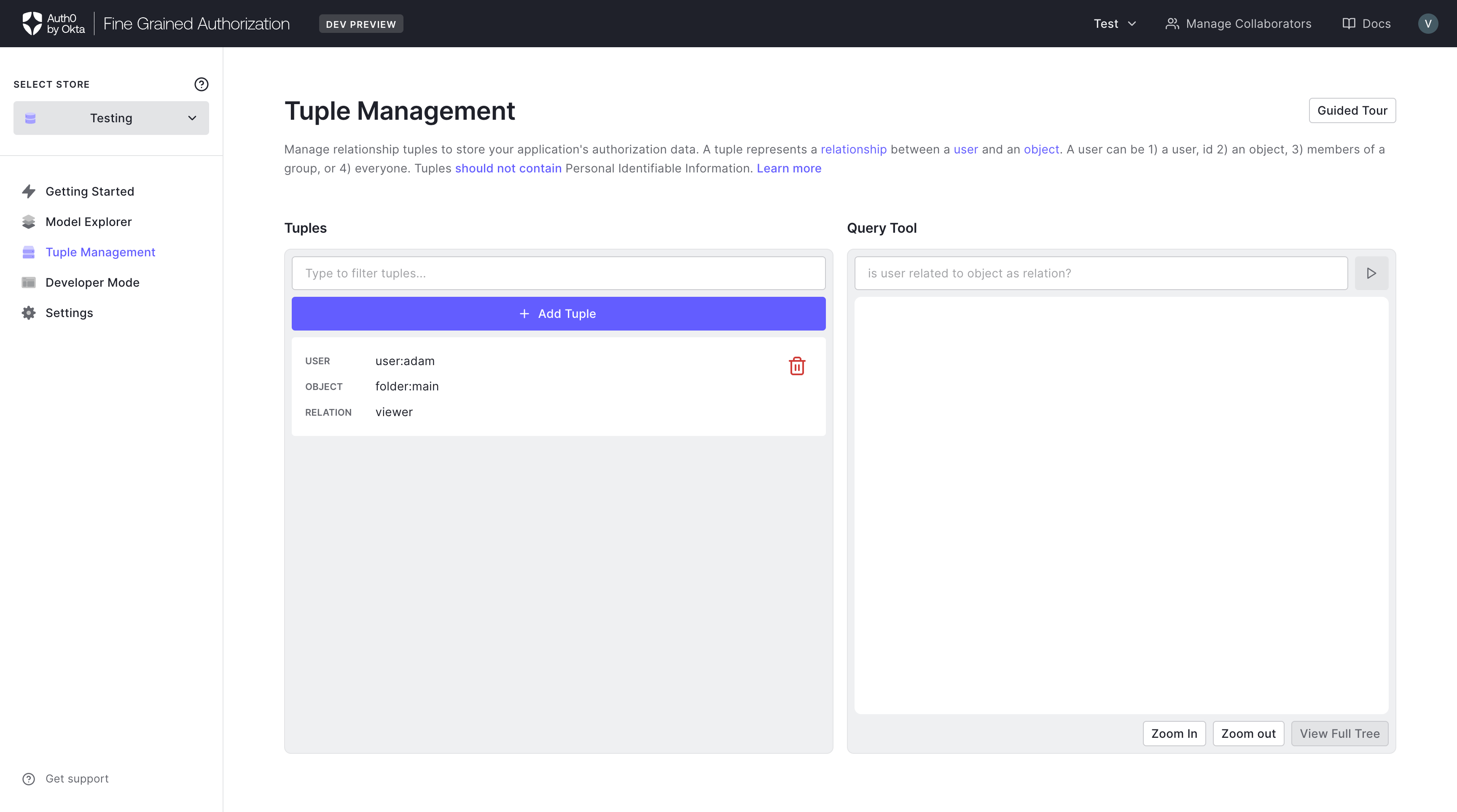
The query is in the form “is x related to y as z?”. This form of query will provide visualization on why the relationship exists between user and object.
The query field supports queries in the form of:
- “Is x related to y as z?”
- “Who is related to y as z?”
Is x related to y as z?
The first type of query is of the form: “Is x related to y as z?”. This form of query will provide visualization on why the relationship exists between user and object.-
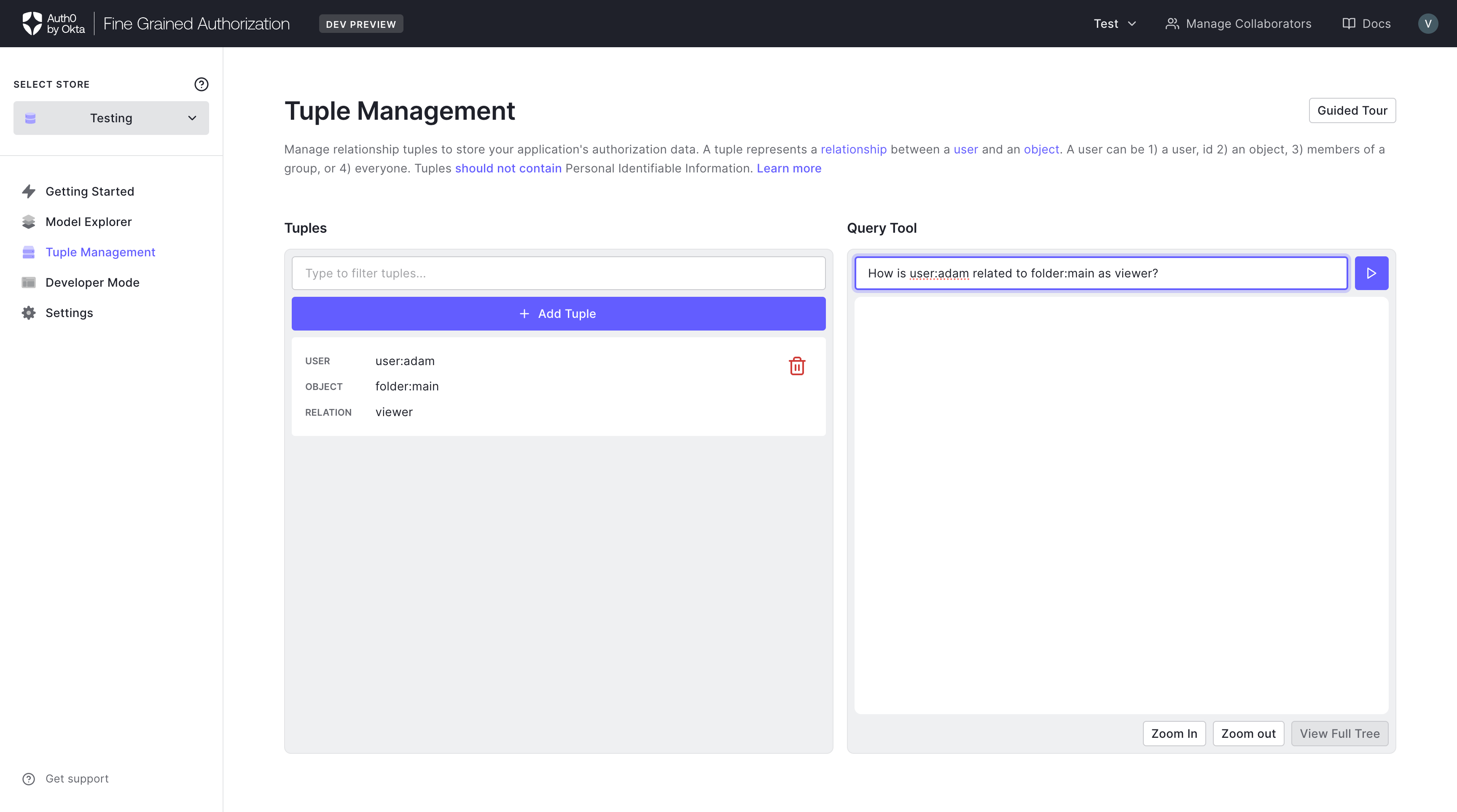
In the query box, type “Is adam related to team:awesome as member?” and type Enter.
-
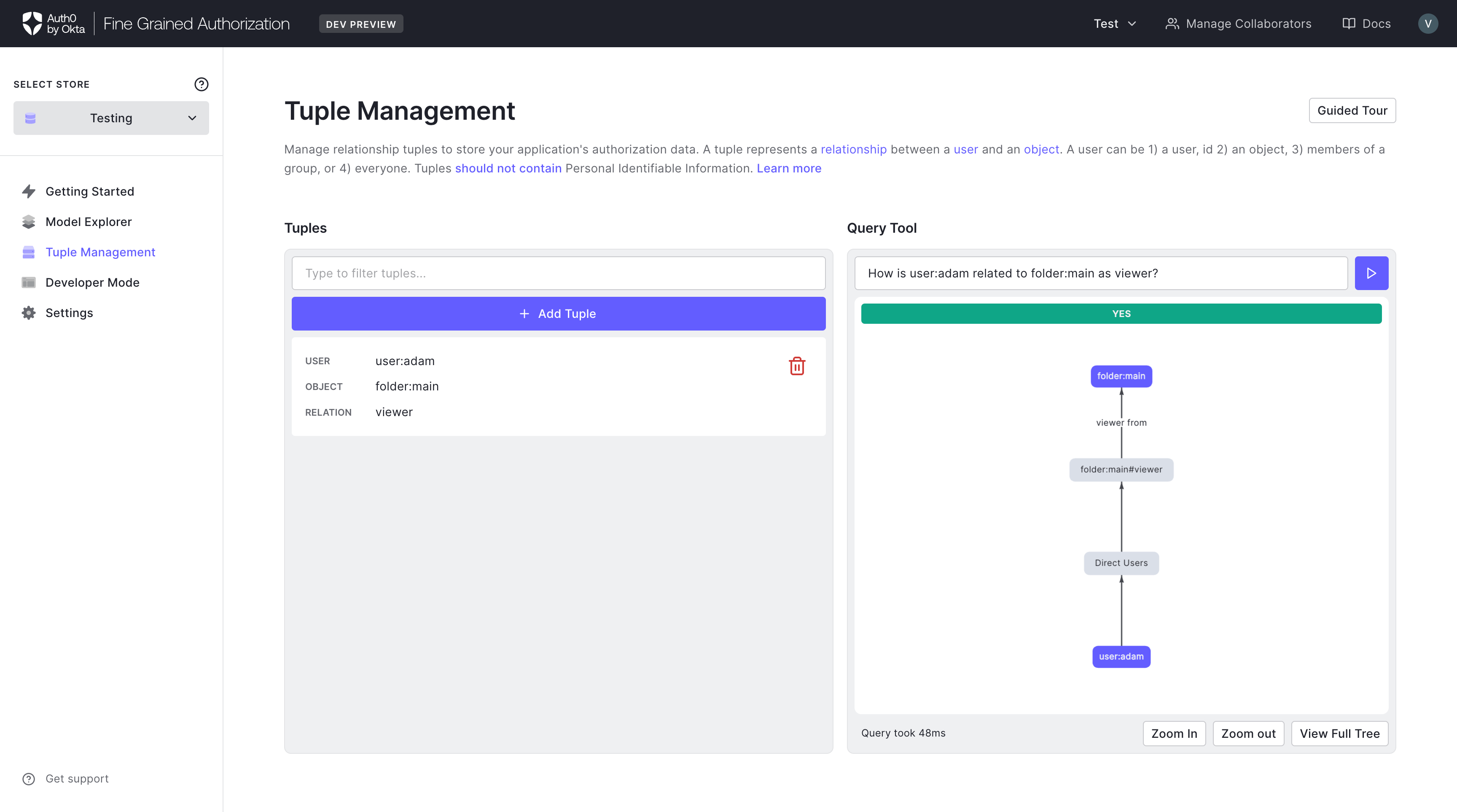
Successful queries will show visualization on how the relationship is established in the Query Tool panel. In addition, there is a green YES box in the panel.
-
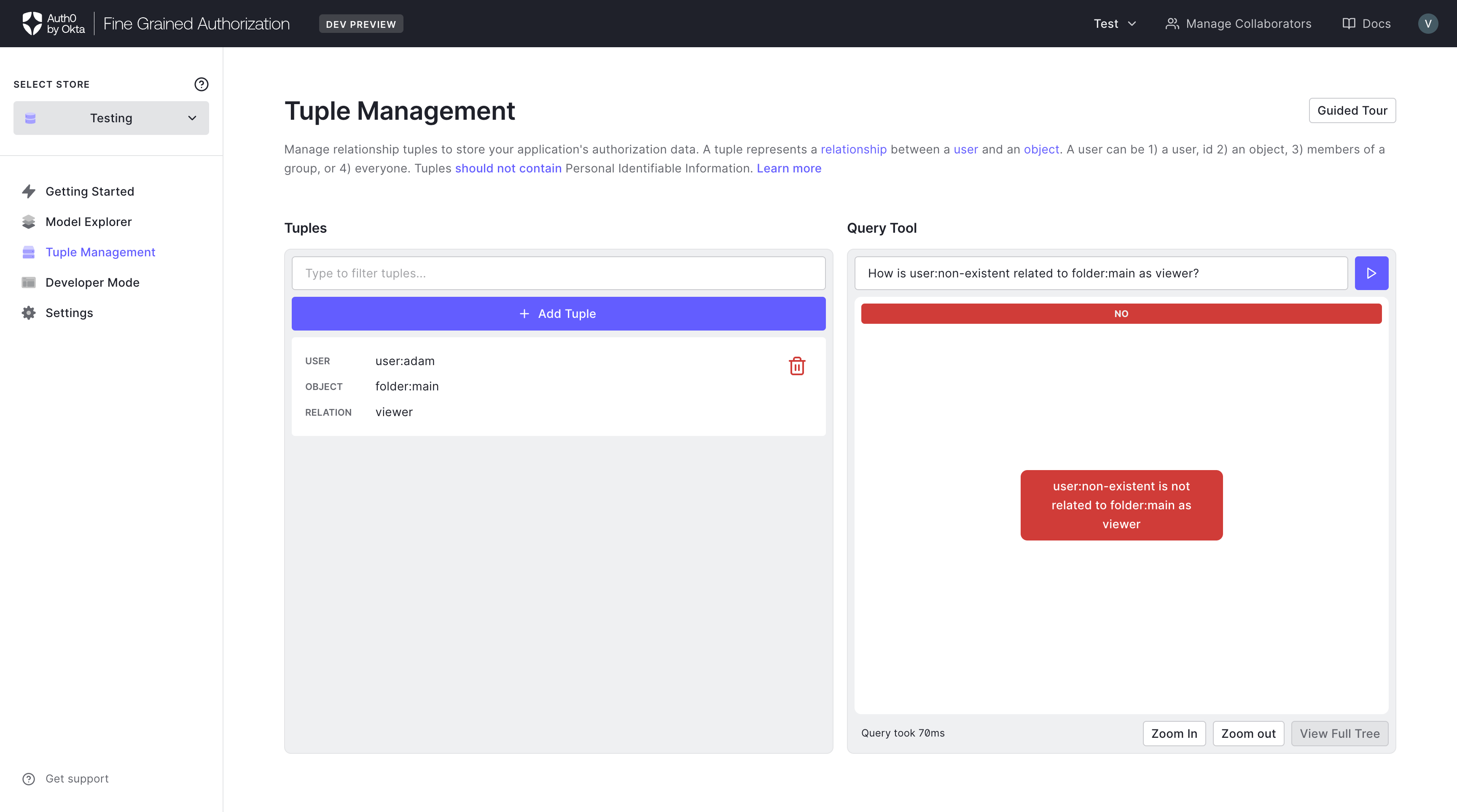
Unsuccessful queries will be denoted with a red NO box in the Query Tool panel.
Who is related to y as z?
The second type of query is of the form: “Who is related to y as z?”. This form of query will provide visualization on who has a particular relationship with an object.-
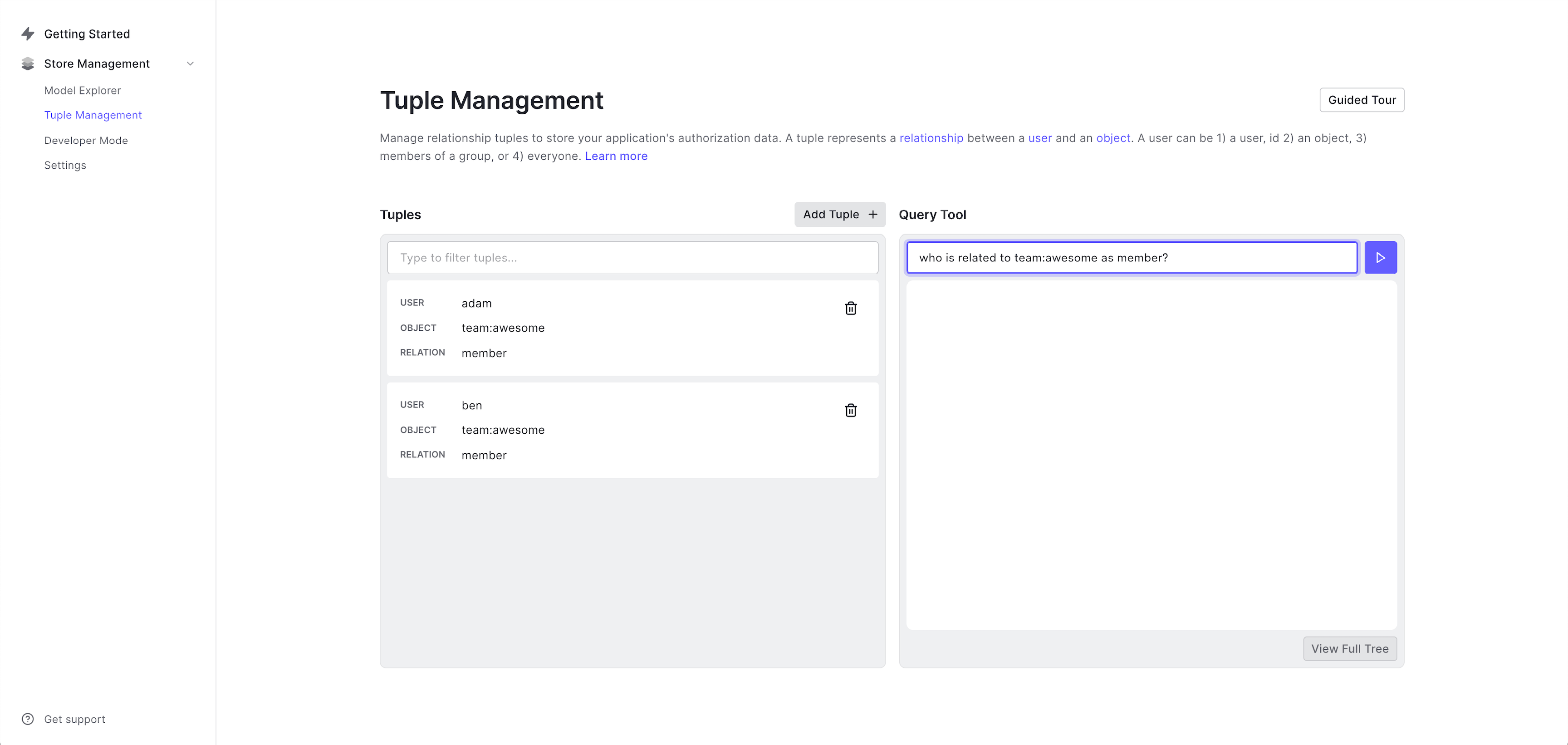
In the query box, type “Who is related to team:awesome as member?” and type Enter.
-
A successful query will show visualization on all the users that have the relationship in the TUPLE QUERIES panel. As it can be seen, only adam and ben has member relationship with team:awesome.